For your team
Manage development, staging, and production URLs as a team
Manage development, staging, and production URLs by naming each link with its product, environment, and purpose, then keeping the links in your team's workspace. linqlo collections, environment labels, and link owners help teammates identify both where to go and whom to ask about a change. Collaboration requires a Team plan.
Choose one maintained starting point
If your team only opens a handful of URLs occasionally, a table in an existing team document may be enough. A document is also a good home when a link needs extensive connection instructions.
A dedicated library becomes useful when people switch between several products and environments every day, and names or maintenance responsibilities are becoming inconsistent. Agree on which list to update, and point chat questions back to it. Establishing one maintained source matters more than creating another place to store URLs.
Make the environment clear in the title
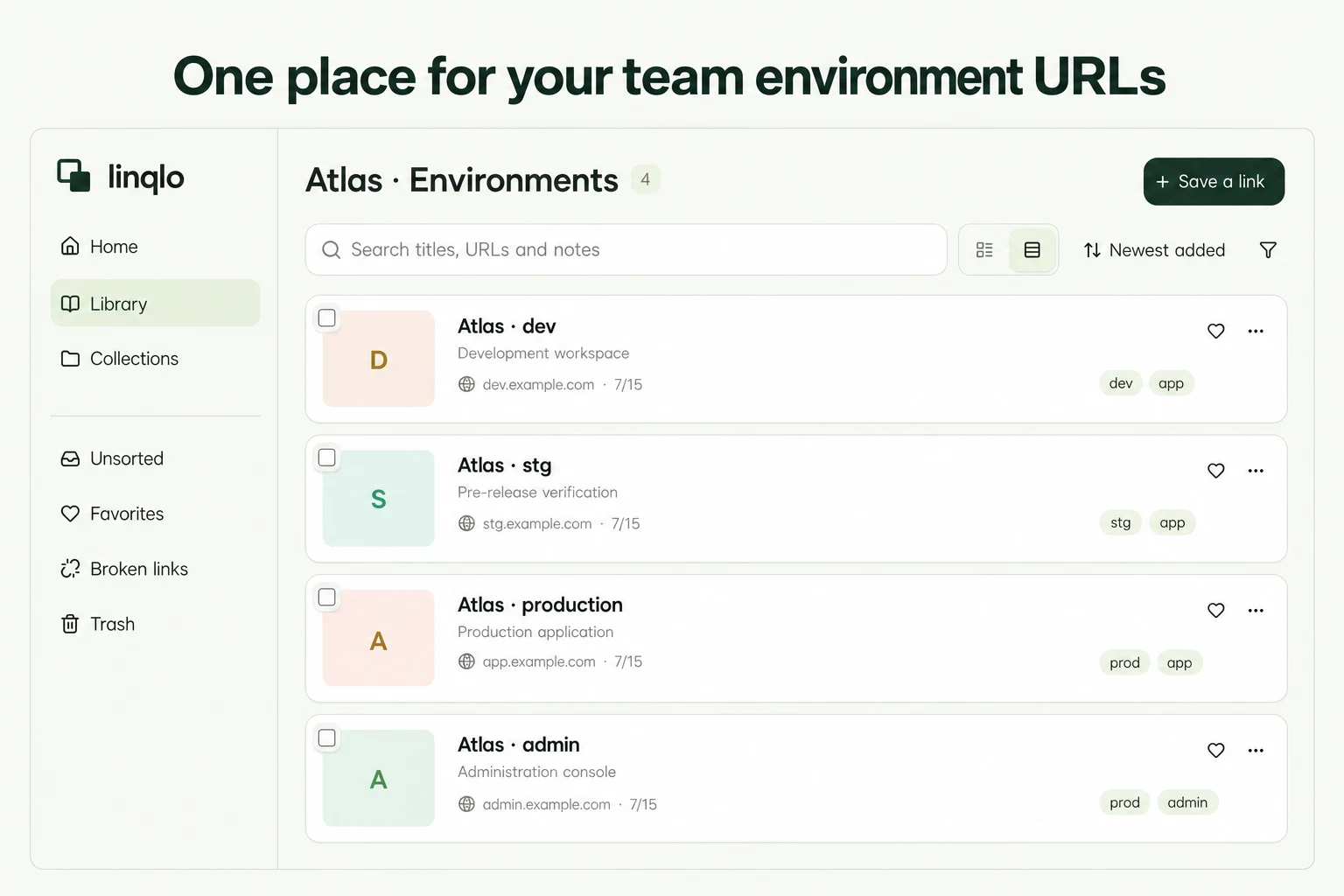
For a fictional product called Atlas, use a naming pattern like this. These are illustrative URLs, not working environments.
| Title | Example URL | Purpose note |
|---|---|---|
| Atlas / dev / app | https://dev.example.com | Development testing |
| Atlas / stg / app | https://stg.example.com | Acceptance checks before a release |
| Atlas / prod / app | https://app.example.com | Customer-facing production service |
| Atlas / prod / admin | https://admin.example.com | Actions involving production data; separate admin access required |
Use Atlas as the collection, with tags such as app and admin for another way to filter. A title provides a useful cue when staging and production look similar. Before performing an action, still check the actual destination URL and its environment indicator.
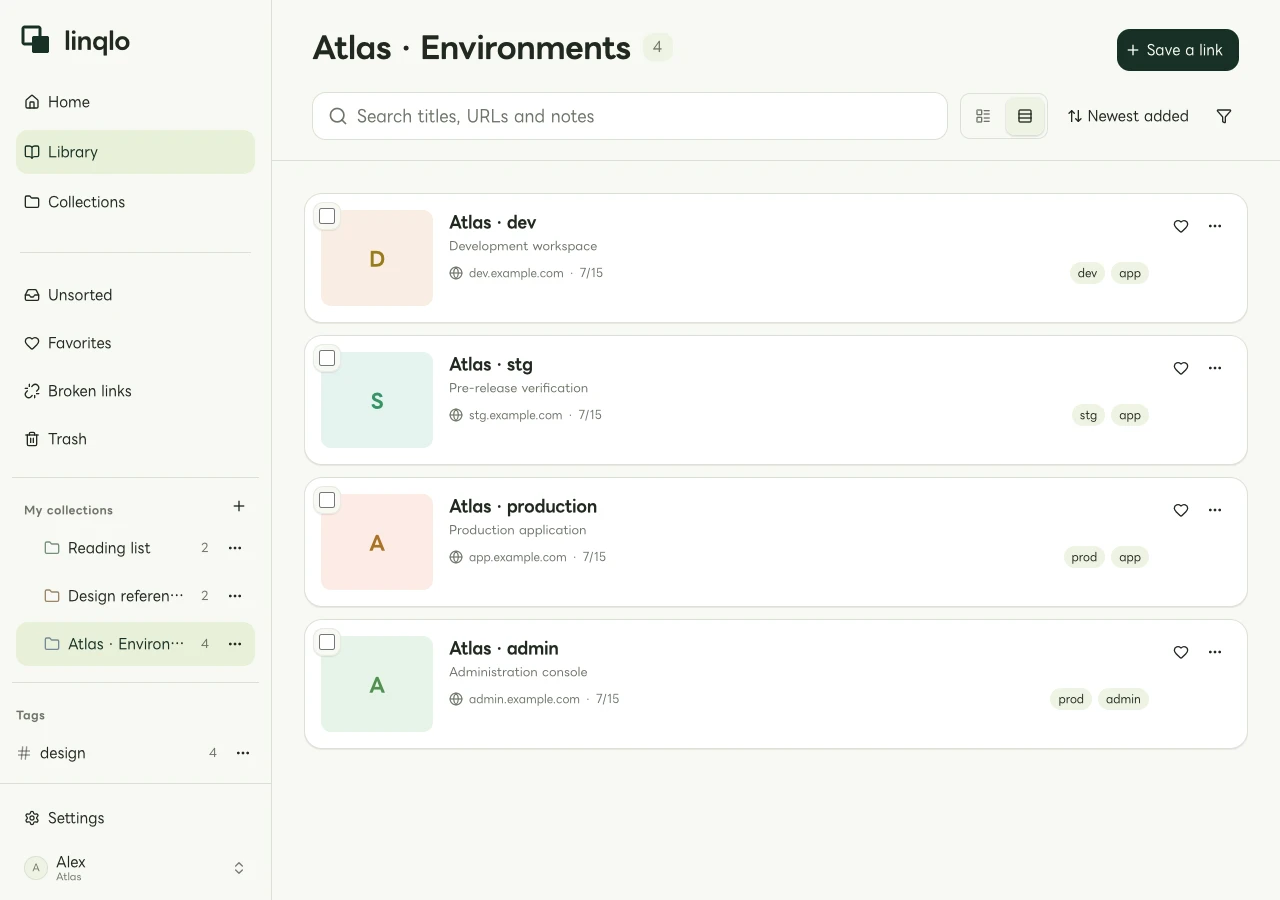
A team library example using fictional data.
Prepare the workspace and links
- Select the workspace your team will use. Creating a workspace does not itself activate a Team subscription; check its status in Settings → Plan & billing.
- Create a collection for each product. In the add-URL form, select “Detailed entry,” paste the URL, then enter the title, destination collection, and notes before saving.
- Set the optional Environment and Owner fields in the editor. Environment selection is available when the workspace's developer options are enabled.
- Open each saved link and check that the destination matches the environment named in the title.
You can use environment labels such as Development, Staging, and Production. Someone selects these labels; they do not automatically verify which system a URL reaches. The Owner field identifies the person who maintains the link. It does not grant that person administrator access to the destination application.
As of October 3, 2026, Team costs US$7 per seat per month with a two-seat minimum. Check the pricing page and the actual checkout for the number of seats and applicable terms before subscribing. Current workspace usage is shown in Settings → Plan & billing.
Test list access and application access separately
An owner or administrator can invite people through Settings → Members → Invite members, specifying their email address and role. After a teammate accepts, check that they can open the same workspace and collection.
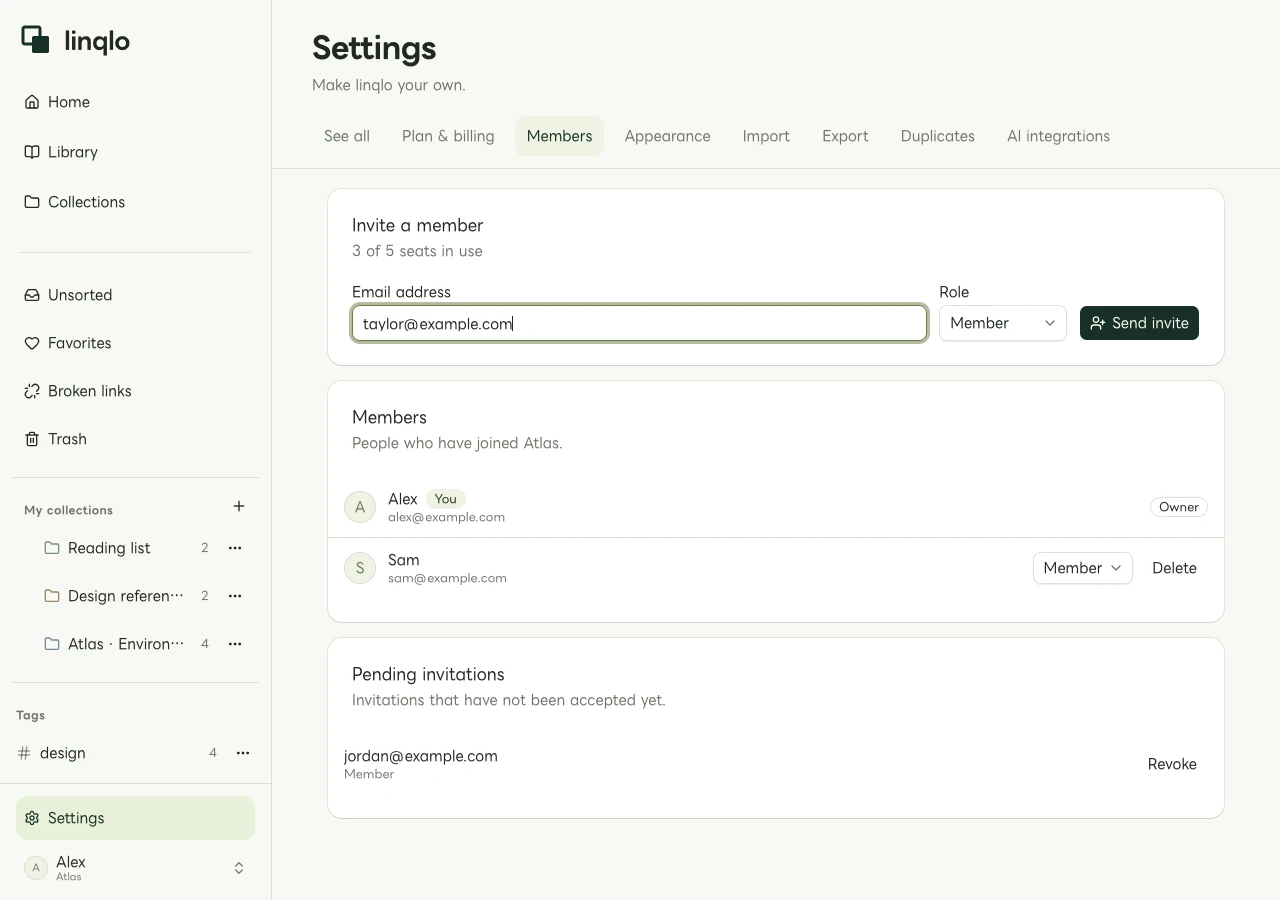
An example of member management with fictional people and email addresses.
Then ask the teammate to open a representative staging link. If they can see it but cannot sign in, check VPN, SSO, or destination roles with the responsible person. Joining linqlo does not grant access to another service. For new starters, pair this check with the guide to first-day onboarding links.
You do not need to enable public sharing to collaborate on internal links with workspace members. Keep passwords, API keys, and temporary credentials out of URLs and notes; use your team's approved credential-management process.
Maintain the list when something changes
When a URL changes, save the new address as a separate link, set its title, environment, and owner, and check that it opens. The existing bookmark editor does not change its URL. Mark the old title as “Old URL,” leave a note pointing to the replacement, and remove the old entry when it is no longer needed. Before a release or handover, check whether each link opens, its environment name is correct, and its owner is still current. Keep access prerequisites and contact details concise; link to the maintained documentation for longer incident-response procedures.
Keep personal references in a personal workspace, or review the visibility rules for private collections. When handing over a project, add the current state and unresolved questions using the project handover reference guide. A list of destinations is more useful when the next person also knows what needs attention.
Put the guide into practice.
Shared workspaces are included in the paid Team plan, from two seats.
See team plans and pricing