For your team
Build an onboarding link collection new teammates can use on day one
An onboarding link collection should explain when to use each link, which part to read and who can help if it will not open. Keep the first-day essentials small, then check that the new teammate can open the original resources. The goal is a clear next action without someone having to explain every link again.
Choose links from the first-day goals
Decide what a new teammate needs to do before gathering every old document. Three useful goals might be understanding the team's role, accessing essential tools and knowing where to ask for help.
This is a fictional team's example. In practice, use material approved for internal sharing in a workspace suitable for its participants.
| When it is useful | Links to include | What the note explains |
|---|---|---|
| Day one | Team introduction and initial setup instructions | Where to start and what to finish today |
| First week | Working handbook, glossary and recurring meeting information | Which tasks need the material and which sections can wait |
| When stuck | Help contacts and access-request instructions | Which team handles the issue and how to reach it |
A person does not need to read material unrelated to their role on the first day. For a long document, a note such as “Read chapter 1 today” makes the starting point clear.
Give each link an actionable note
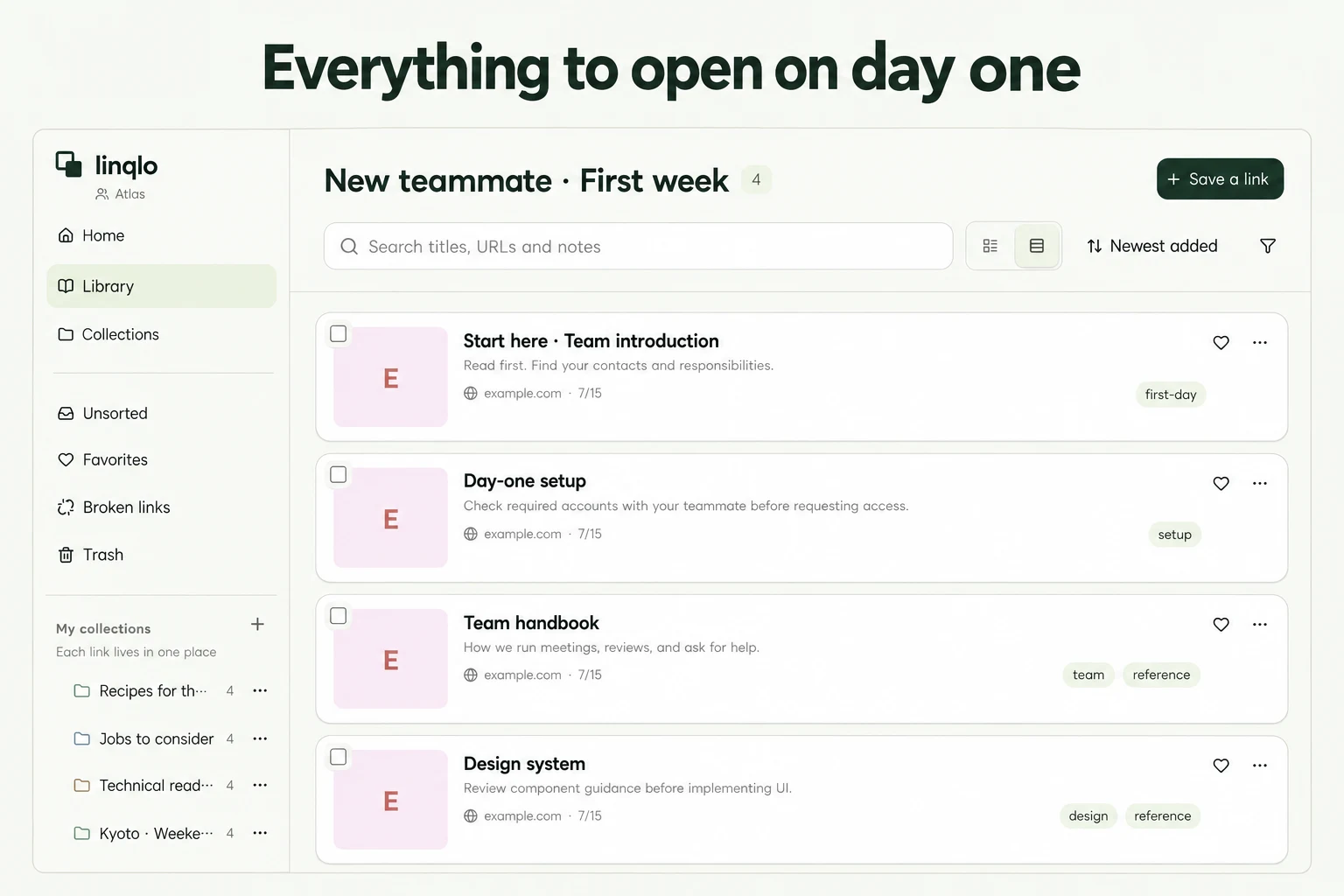
Create a collection such as “New teammates · First week” in the team workspace and save the resource and tool URLs. You can add the URL first, then edit its title and “Memo.”
A tool's name alone may not explain its purpose. A fictional setup note could read:
- Title: Day-one workspace setup
- When: After the initial welcome session
- Read: From “Check your account” through “Verify the setup”
- Prepare: Sign in with the account provided by the company
- Done when: You can open the verification page in the instructions
- If blocked: Contact the IT help channel listed in the guide and identify the step that failed
Use the approved service entry point and access-request process. Do not put passwords, secret invitation information or temporary URLs containing personal data into the note.
Check workspace membership and source access separately
For collaboration in linqlo, check the Team workspace and required seats. An owner or administrator who can invite members should check the recipient and role in the members settings before sending the invitation. Choose a role appropriate to the person's responsibilities rather than granting unnecessary administrative access.
Ordinary collections belong to a workspace. Do not place confidential material there on the assumption that only a few named people will see one particular collection. Before saving, check that its title, URL and notes are appropriate for the workspace's participants.
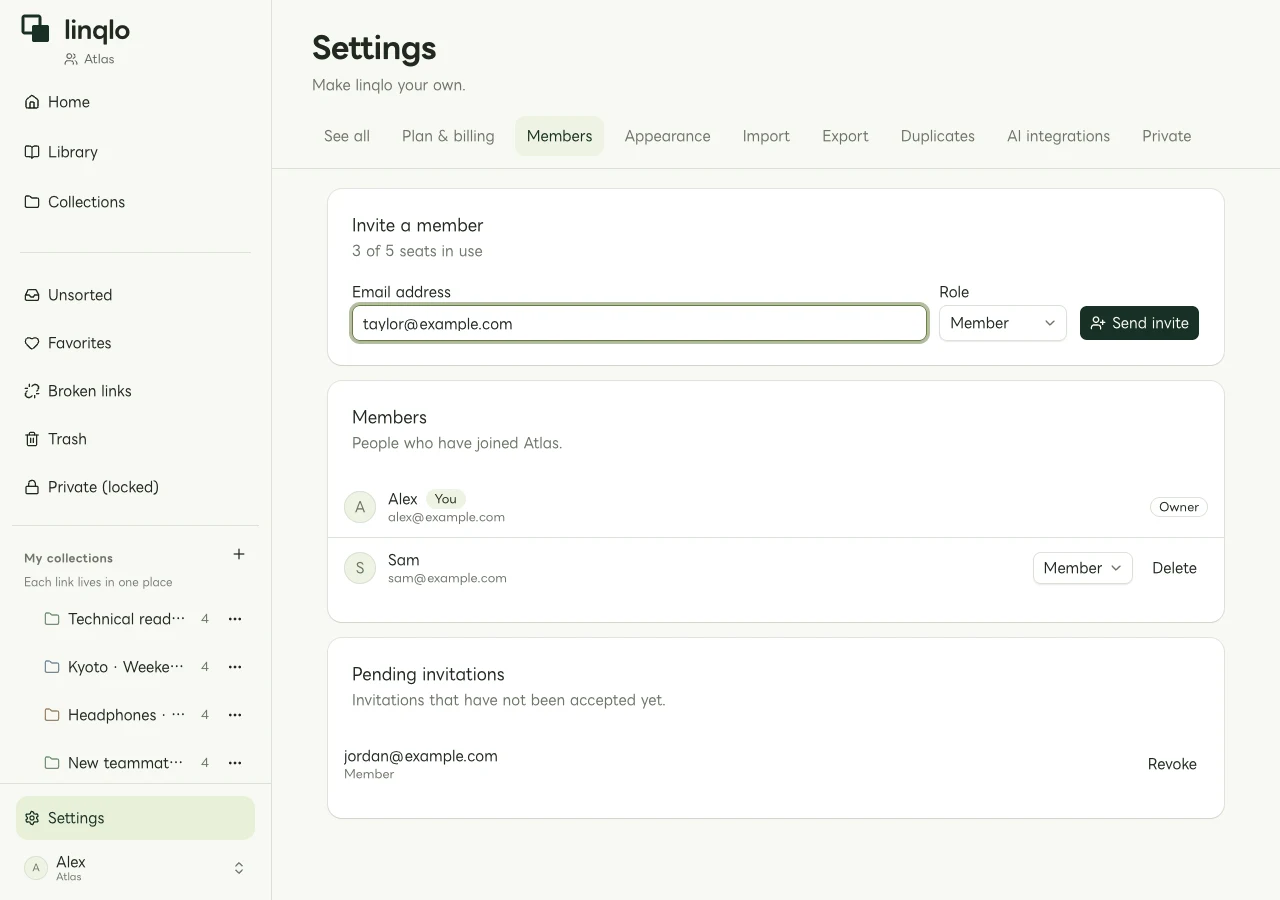
Example input in the invitation form. The image does not establish that email delivery or invitation acceptance has succeeded.
Accepting the invitation and seeing the links does not automatically grant access to internal documents or tools. Check the account, group membership and permissions in each destination service as well.
Ask the new teammate to open three entry points
Finish preparation by testing representative links with the new teammate's own account:
- Open the team introduction and locate today's reading.
- Open an essential tool and reach the screen they need.
- Open the help directory and identify whom to contact about missing access.
If an invitation email is missing, check the address, spam folder and invitation status. If linqlo opens but the collection is absent, check the selected workspace and filters. If the original document denies access, ask its administrator. Separating these problems avoids unnecessary repeat invitations.
Keep it ready for the next arrival
Assign someone to coordinate onboarding and someone to maintain the resources. Recheck the entry points before the next person joins, and update links and reading instructions whenever a tool or guide changes. A note such as “Checked 2026-10-01” can record a review, but the team maintains that record manually.
Keep this collection as a standing introduction to the team. For the reasoning behind an active project's decisions, use project handover reference notes. When including environment URLs, see separating development, staging and production links.
Put the guide into practice.
Shared workspaces are included in the paid Team plan, from two seats.
See team plans and pricing