For you
Keep bookmarks private with a passkey-locked collection
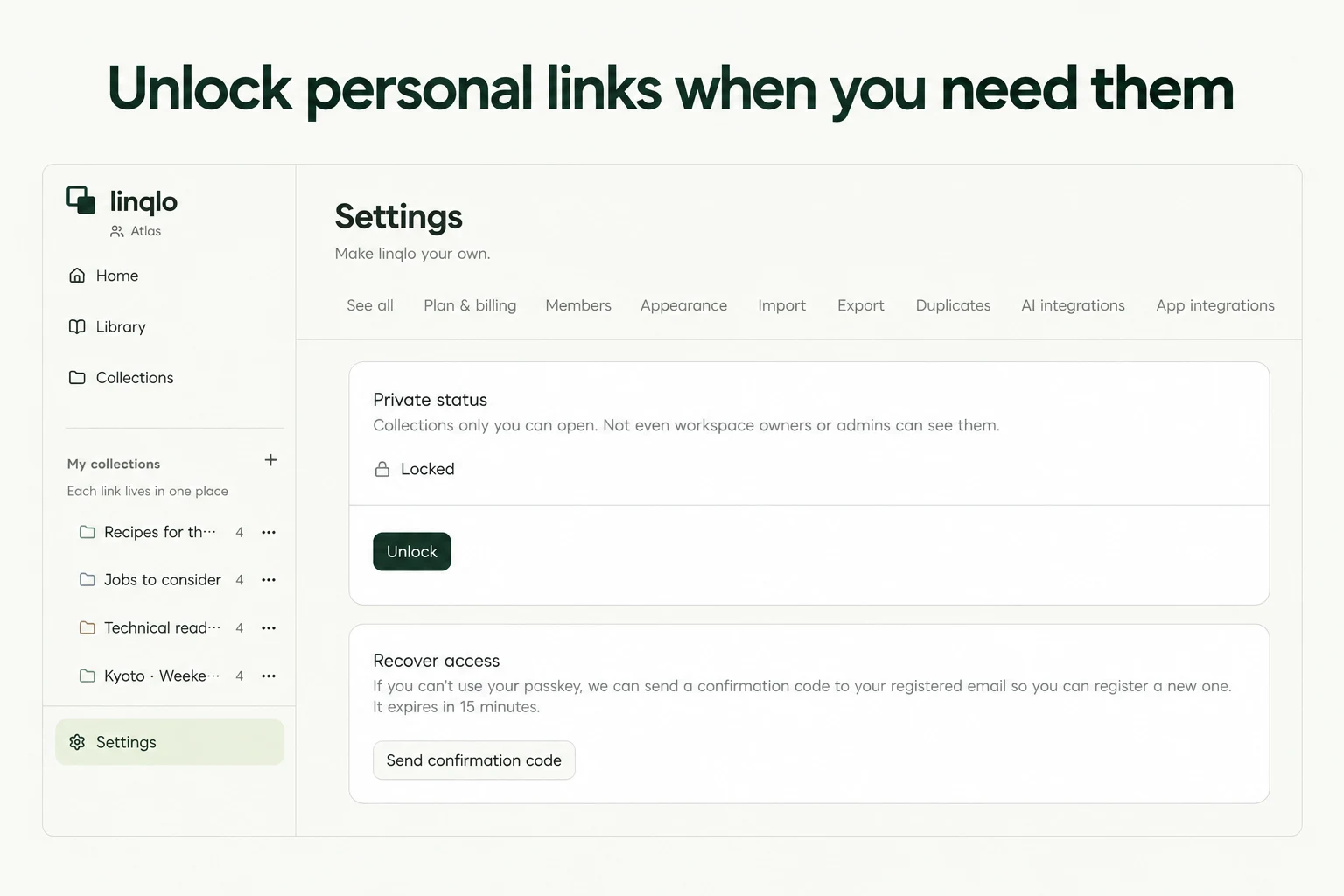
Use a private collection to separate personal bookmarks from linqlo's ordinary library. You can view its contents after unlocking with your passkey; other workspace members and owners cannot view them through the workspace. Begin with one public test page, then check both unlocking and relocking before relying on the workflow.
Understand who can see each destination
An ordinary collection is visible within its workspace. Turning off public sharing and making a collection private are different settings.
| Destination or state | What to understand |
|---|---|
| Ordinary collection | Visible to workspace members; public sharing is a separate setting |
| Unsorted link | Not protected by a private collection |
| Private and locked | You need to unlock before viewing the contents |
| Private and unlocked | You can view the contents; they do not become shared with other members |
Turning off “Make private,” or moving a link to an ordinary collection, makes it visible to other members of that workspace. Read the destination and confirmation message before moving personal material. Moving it to Unsorted does not hide it.
Set up an empty collection first
Use an ordinary public reading reference for this Web-app walkthrough. You need a linqlo account and a browser and device that support passkeys.
- Open Settings, then Private, and choose “Set up.”
- Give the passkey a recognizable name and complete your device's authentication prompt. Check that it appears among your registered passkeys.
- Create an empty collection such as “My own references.” Keep it at the top level and do not add subcollections.
- Open the collection's settings, enable “Make private,” and check that its private status is shown.
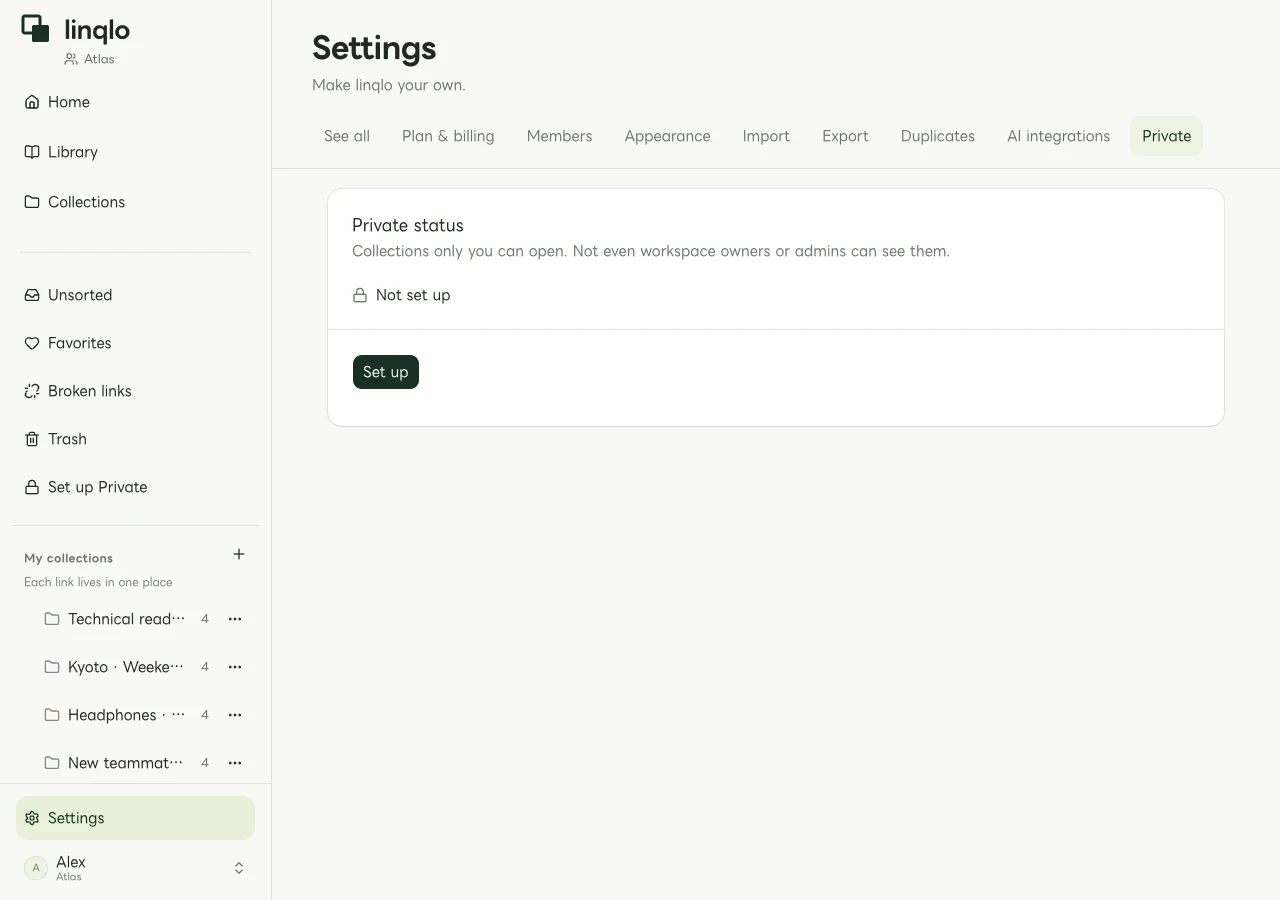
An example of the Web settings screen. Follow your device's instructions for the actual authentication step.
A publicly shared collection, a collection inside another collection, or one with subcollections cannot be made private. Starting with an independent empty collection makes the visibility change easier to understand than moving an existing shared library all at once.
Check the destination before saving a link
Open the private collection and check that the add-URL form points to it. Save a public page, such as a book's description, as your first test. Choose “Detailed entry” if you want to add a title or note.
Do not first save personal material in an ordinary team collection on the assumption that you will move it later. The relevant visibility is the destination at the time of saving. Do not use passwords, API keys, or temporary sign-in links as sample data.
Choose “Lock now.” Check the locked status and confirm that the test link is no longer shown in the ordinary list or search results.
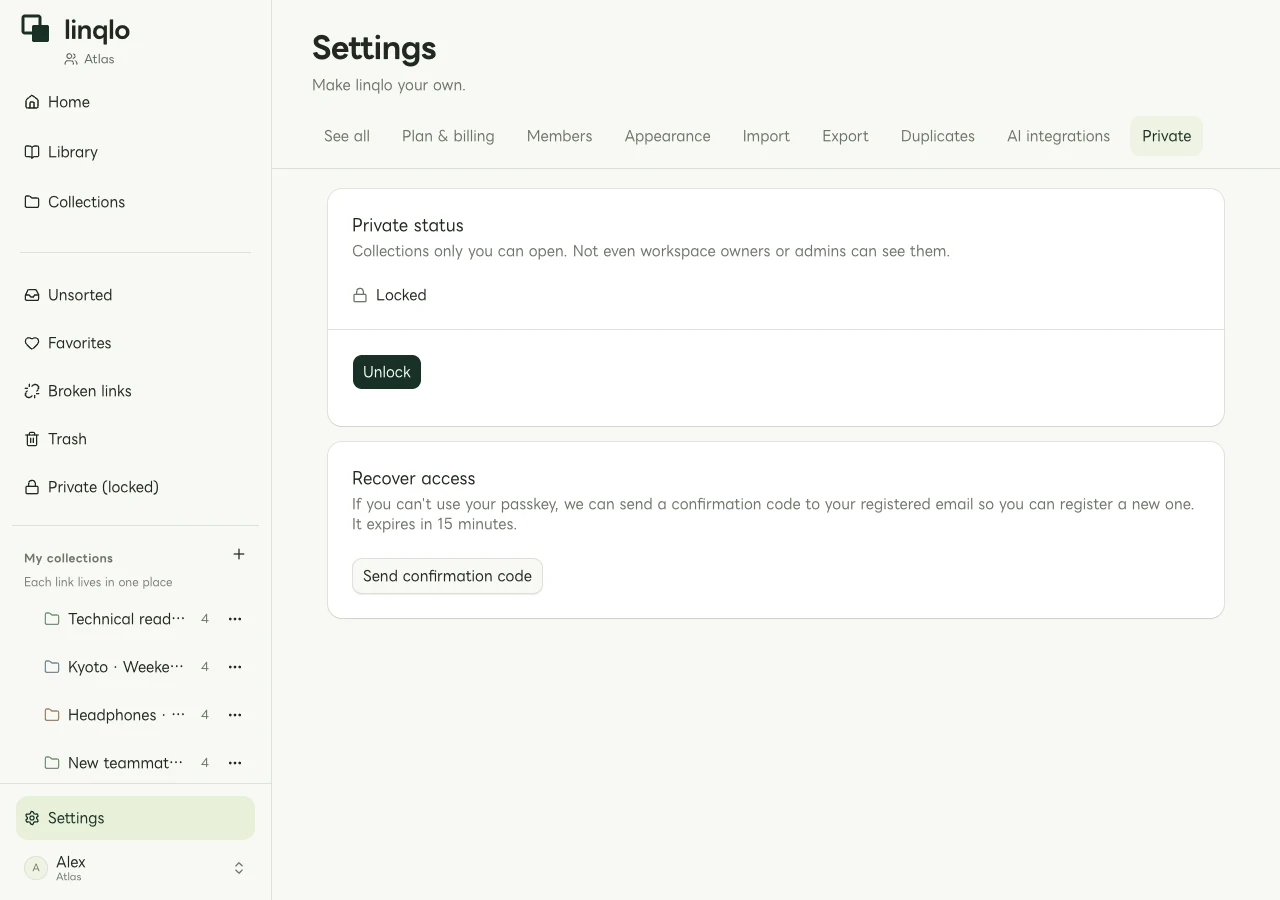
An example of the locked status in settings.
Lock explicitly when you finish
Open the locked Private entry, authenticate with your passkey, and reopen the saved reference. When finished, choose “Lock” and check that the status returns to locked.
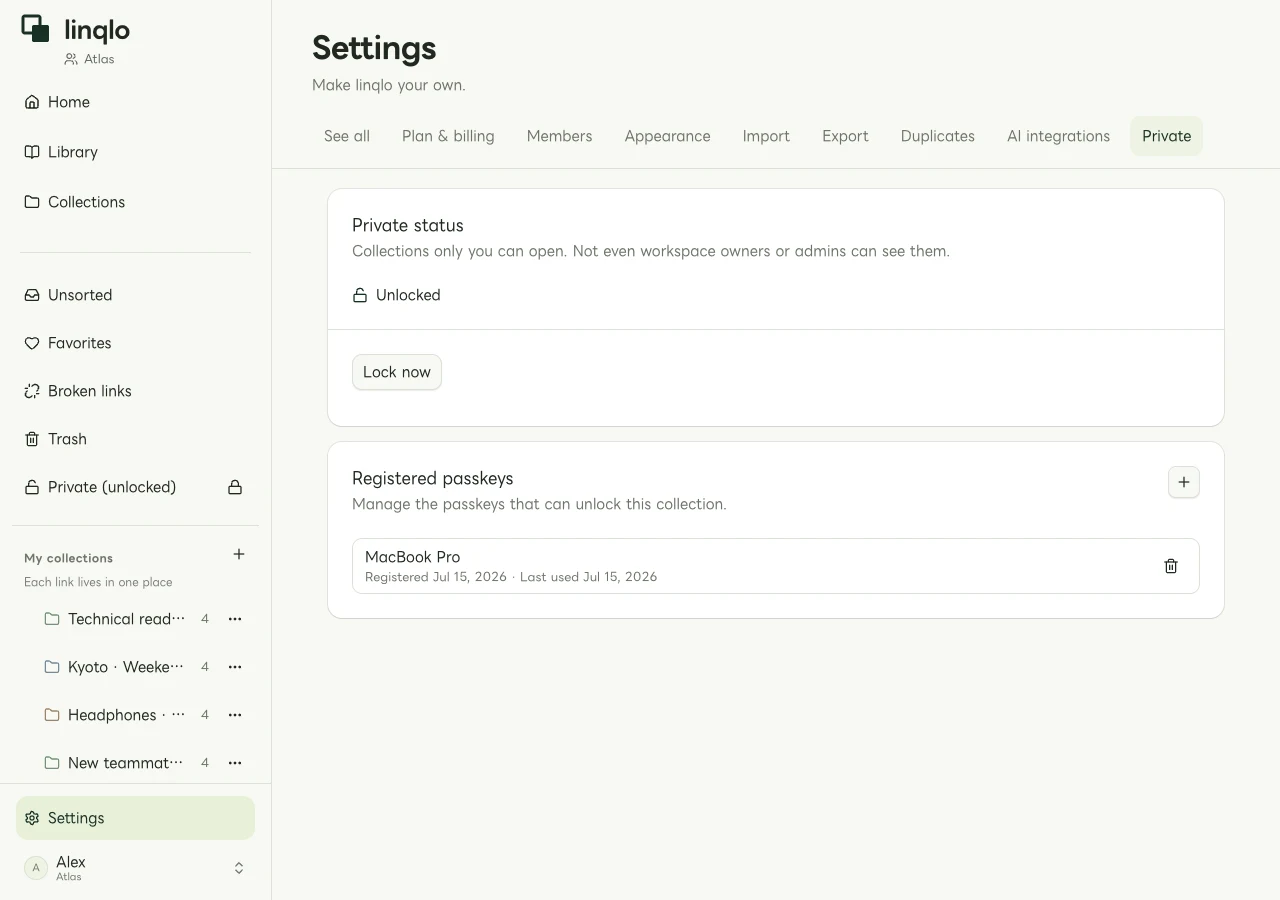
An example of the state after the owner has unlocked Private.
Do this before sharing your screen or handing over your device rather than waiting for automatic locking. Switching tabs does not necessarily lock the collection immediately. A source page you already opened in another browser tab also needs separate attention: locking linqlo does not close it. Check both your screen-sharing target and the pages still open.
If you cannot use your passkey
Choose “Can't use your passkey?” on the unlock screen to start recovery through your registered email address. Use the confirmation code to register a new passkey. Completing recovery replaces the previously registered passkeys and invalidates existing unlock sessions, so other devices will need to unlock again. The code is valid for 15 minutes; if it expires, follow the screen's instructions to request another.
Private collections control viewing within linqlo. The source site's login and visibility rules, browser history, and previously captured screenshots are separate concerns. This workflow is not a description of anonymity, whole-device protection, or end-to-end encryption.
For everyday classification, continue with bookmark organization. For shared references, see a team's development-environment link library. Choosing personal and shared destinations first reduces the need to move links later.
Put the guide into practice.
Create a free account to get started. No credit card needed.
Bring your links together for free