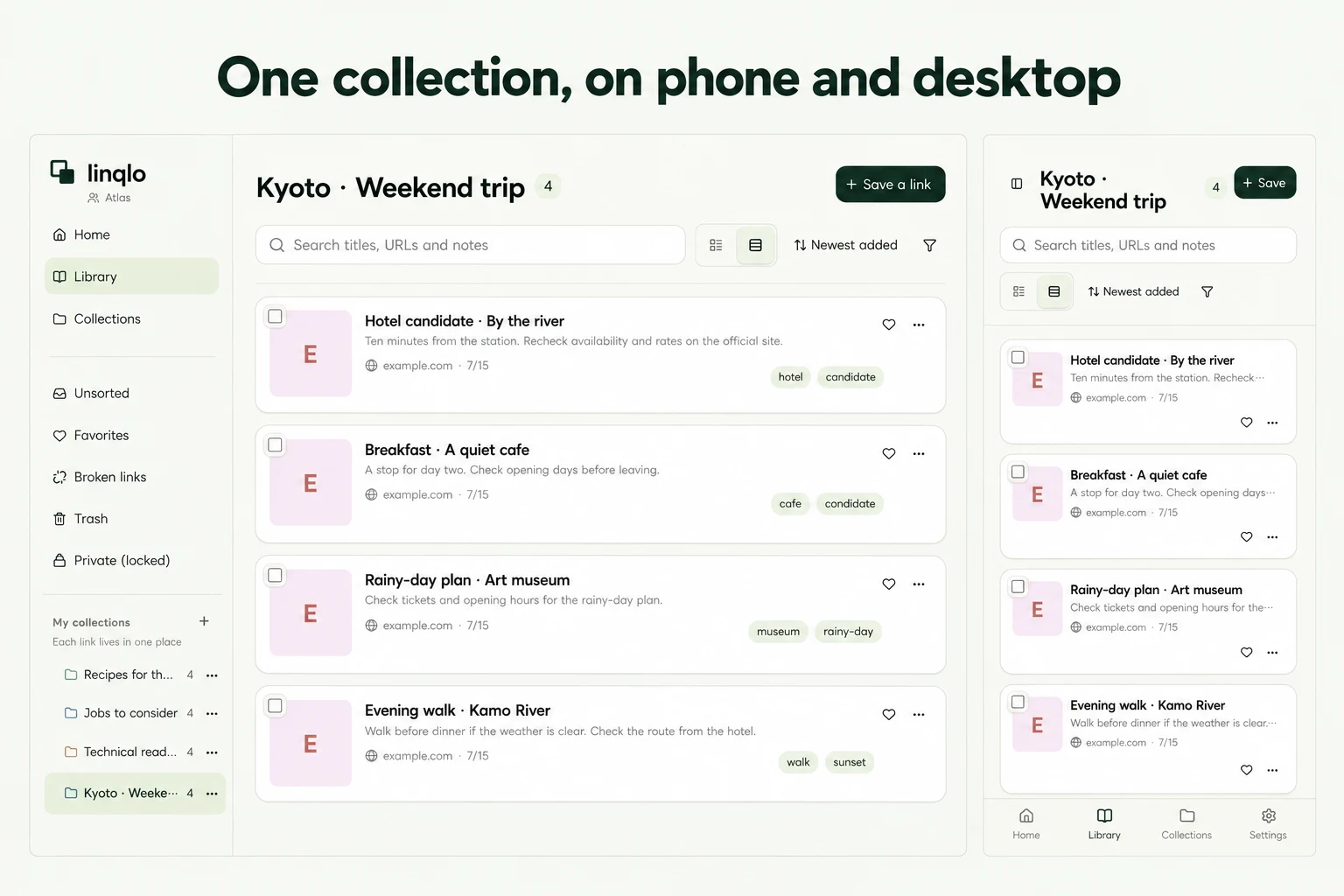
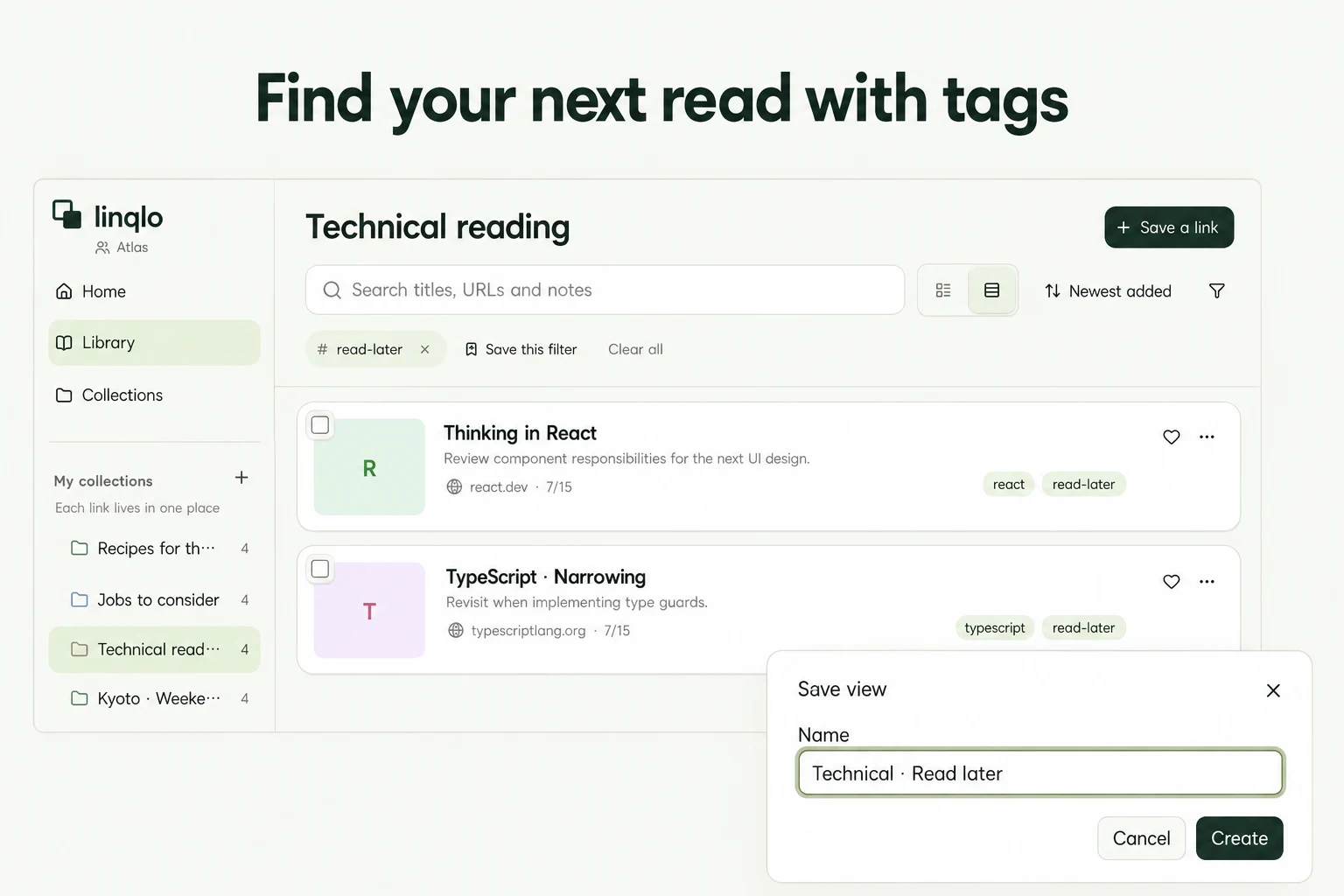
For you
Organize bookmarks so you can find them again
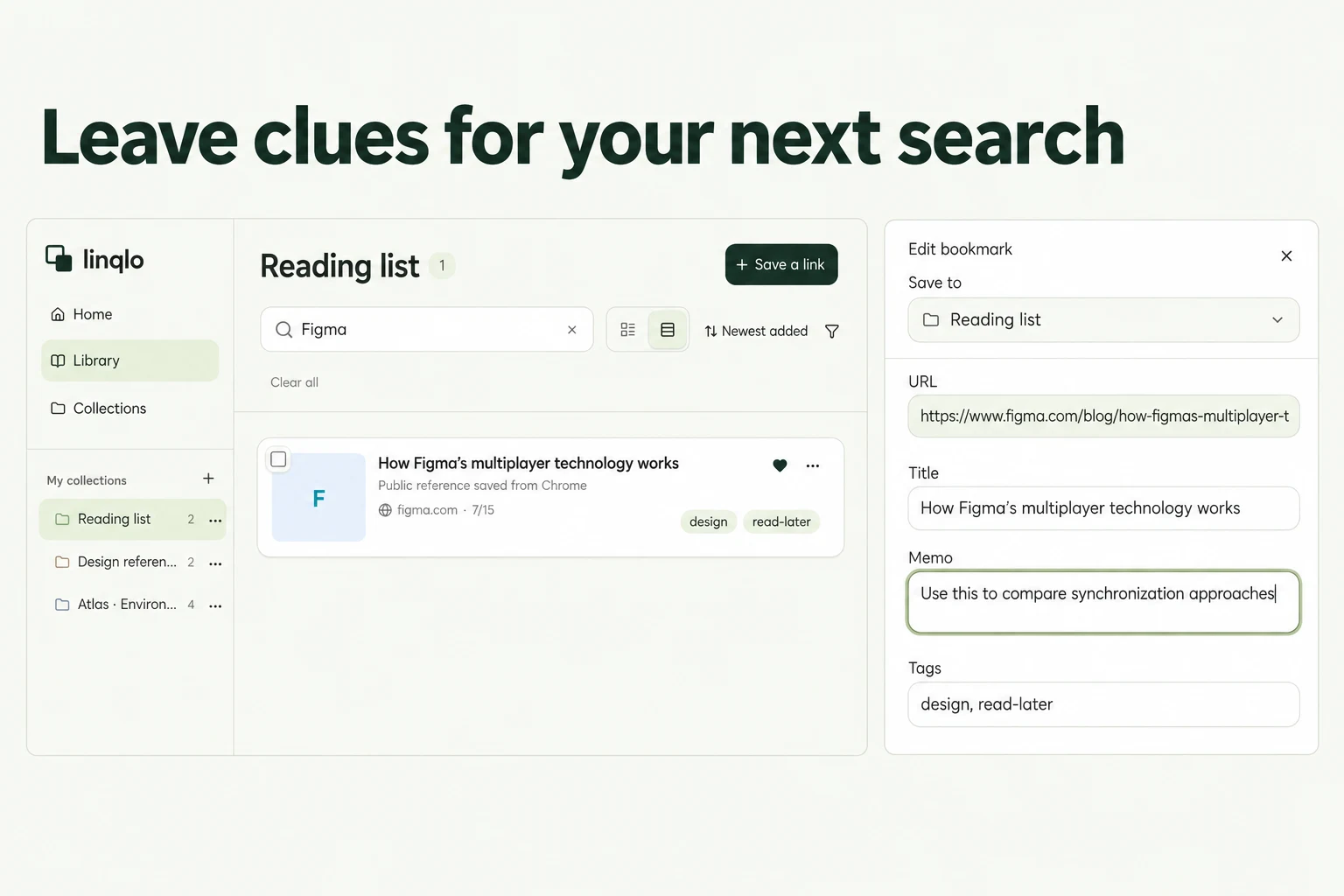
Start organizing bookmarks by adding the words you will remember when you look for them again. Choose a few recently used links, give each a main home, add useful tags and record why you saved it. The test is whether you can find a link again from those clues.
Choose the clue that solves the problem
Before adding another folder, decide what you remember when a bookmark is missing. Use this table to change one thing at a time.
| What makes the link hard to find? | What to change first | How to check it |
|---|---|---|
| You know the project, but its links are scattered | Use one collection for that project | Open the collection and look for the needed reference |
| The same link serves several purposes | Keep its main collection and add a tag for the other purpose | Filter by the tag instead of saving another copy |
| You remember why you saved it, but not the page name | Add those words to its title or Memo | Search for a distinctive word you added |
| You are using a different browser or device | Check the account and workspace first | Follow the phone-to-computer check before changing the organization |
For example, keep a form-design article in “Work references,” use “Read later” as its tag, and write “Check error placement on the signup screen” in Memo. This is a fictional organization example. The collection answers where to look; the tag answers what to do with it; the memo gives you a word to search. If searching for “signup” finds that reference, you have checked the clue you just added.
Start with one bookmark you lost before
You may remember “I saved this while designing a form” without remembering the page's name. Put the words you actually recalled into the title or note.
If you use one browser and have relatively few bookmarks, its built-in folders and editable names may be enough. Google's Chrome bookmark guide explains those controls. Use linqlo when you want to connect different purposes through tags and keep your reason for saving a page alongside it.
Give collections, tags and notes different jobs
| Clue | Job | Example |
|---|---|---|
| Collection | Main home | Work references, Personal learning, Trip ideas |
| Tag | A label across those homes | Read later, Shortlist, Implementation reference |
| Title | A name that identifies the content | Form error-message examples |
| Memo | Your reason for saving | Refer to error placement when designing the signup screen |
If an article is useful for both work and learning, put it where you are most likely to look and use a tag for the other angle. Try that before saving the same URL again for every topic.
Only maintain tags you actually use. If “Unread” and “Read later” mean the same thing to you, choose one rather than splitting the list unnecessarily.
Turn vague titles into useful clues
These are fictional before-and-after examples. Keep useful original names while adding enough context to recognize the purpose.
| Before | Clearer title | Words to use in notes or searches |
|---|---|---|
| Home | Figma design-system reference | Signup screen, input form |
| Documentation | CSS Grid card-layout examples | Card width, spacing |
| Product details | Commuting bag · Store A · Navy | Laptop compartment, check in store |
You do not need long titles everywhere. Improve the links whose existing names left you guessing.
Test saving and retrieval with a few links
- Save a few links relevant to your current work or learning in the same workspace. If you saved only their URLs, open the editor afterward.
- Choose a collection as the main home. A name such as “Interface design references” will mean more later than “Other 2.”
- Add useful tags, improve unclear titles and write one sentence in “Memo” about how you will use the source.
- Return to the list and search for part of a title or a word from the note, such as “Figma” or “signup screen.”
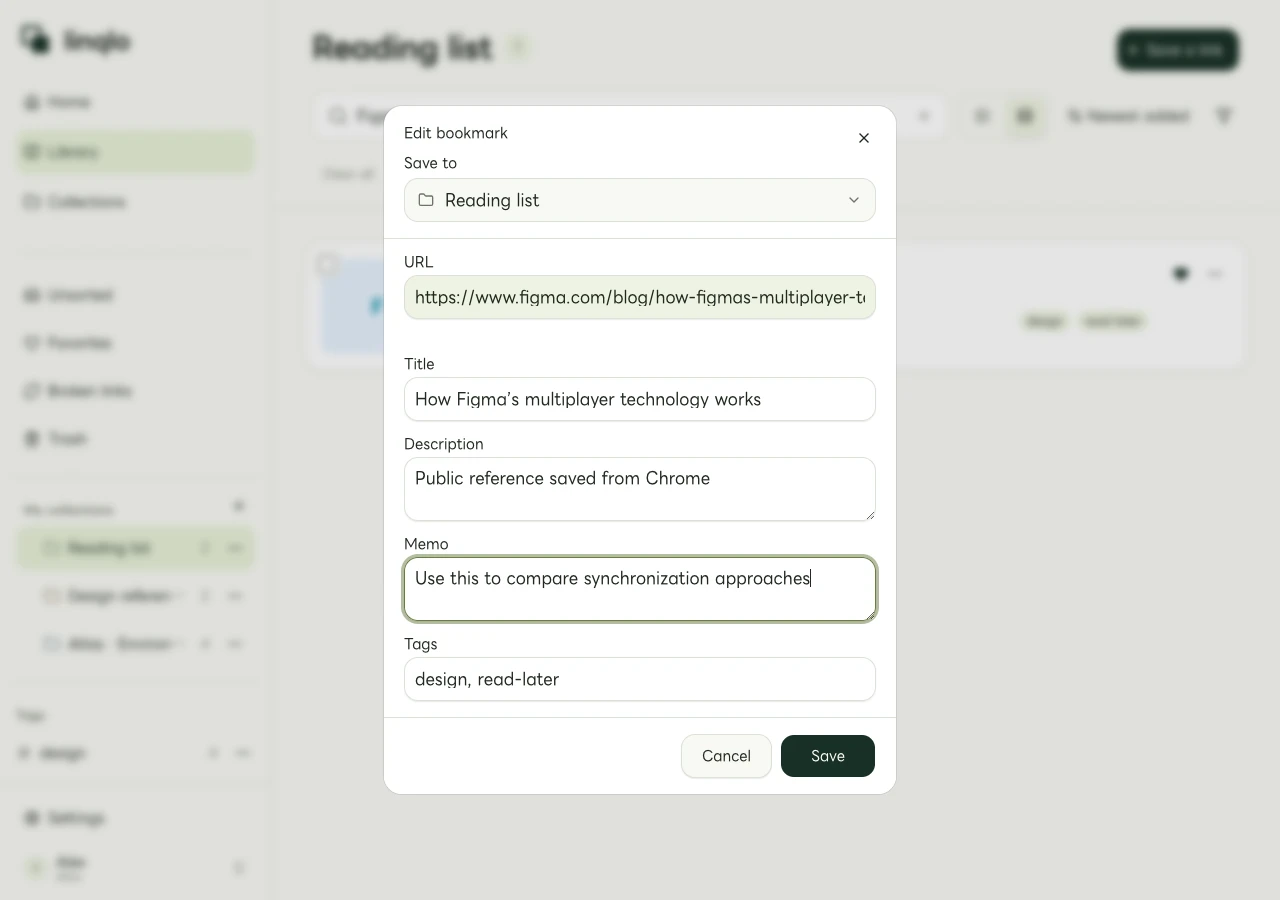
The web editor with example data.
Search can use the title, description, URL and memo. This method puts remembered words in your saved information rather than depending on a search of the source page's full text.
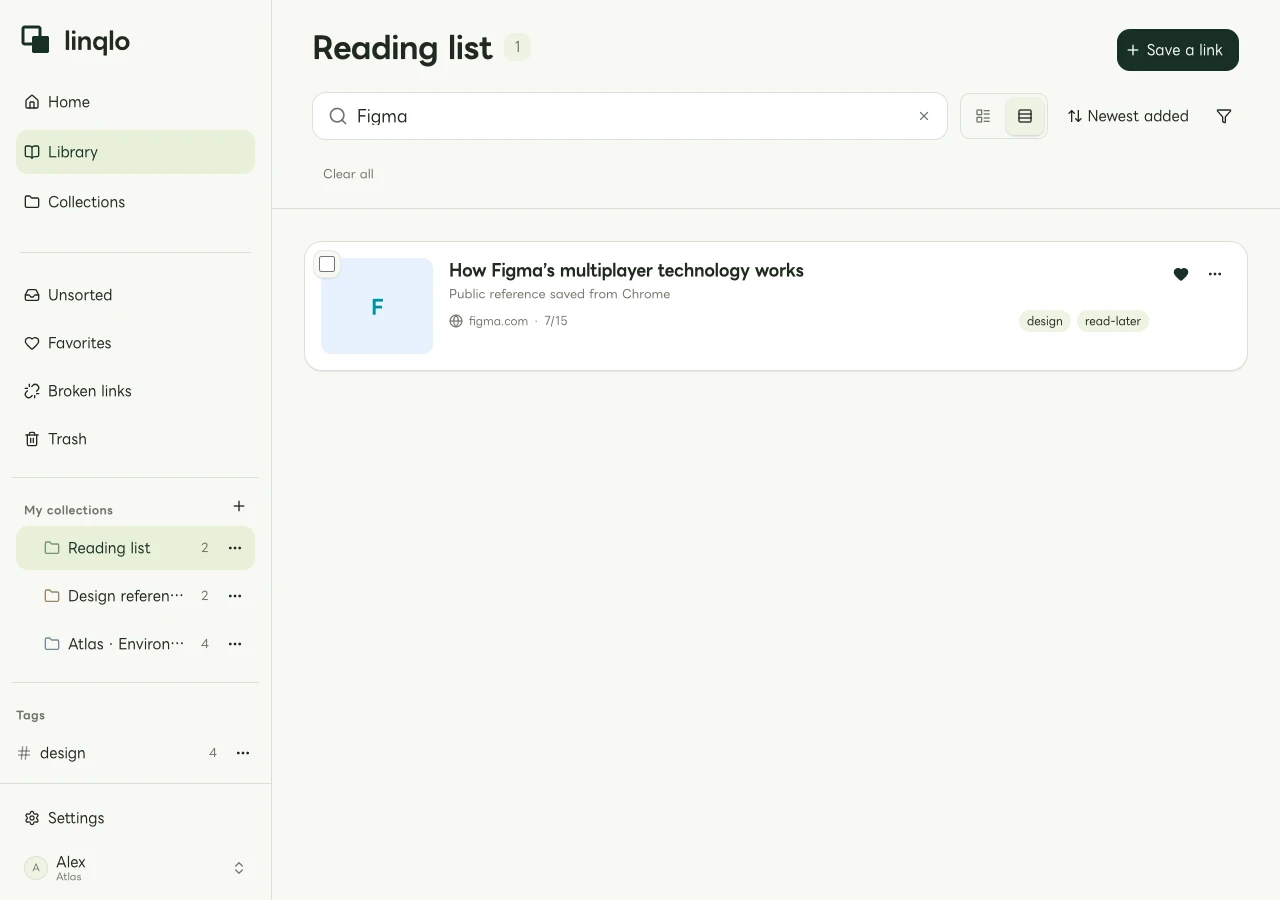
An example web search for “Figma.” The table above illustrates editorial changes; it is not a complete description of the screenshot's dataset.
If the link is missing, check the workspace, collection, tags and search conditions. Clear unnecessary filters and try a shorter title fragment or the URL's domain. Once found, add any clue that would have made retrieval easier.
Before importing older bookmarks
Try your organization method on a small set before importing more. Google's official import and export instructions explain how to export Chrome bookmarks as HTML.
In linqlo, open Import from Settings and select the HTML file. Review the preview's counts, duplicates, folder structure and destination before running the import. If capacity is a concern, open the selected workspace's Settings → Plan & billing and check its usage.
The import uses the HTML folder structure to organize collections below the chosen destination. An existing collection with the same name in the same place may be reused, so not every folder necessarily creates a new collection. Afterward, check the imported, skipped and created-collection counts, then open representative links. Keep the original HTML file until you have checked the result.
Keep the maintenance rule small
Not every bookmark needs detailed notes. Prioritize links whose purpose you might forget or that you will use for a comparison. Start reviews with material you use now.
For a missing link on another device, see opening the same links on your phone and computer. If you keep repeating a filter as your library grows, see technical articles, tags and saved views.
Put the guide into practice.
Create a free account to get started. No credit card needed.
Start organizing for free