For you
Open links saved on your phone on a computer with Chrome or Safari
To read a link from your phone on a computer, save its URL in linqlo, then open the same account and workspace on your computer. You can return to the same saved links while switching between Safari and Chrome. Start with one link and check that you can open it on the device where you need it.
Choose between browser sync, a one-time import and a common list
| What do you want to do? | Where to start | What carries over? |
|---|---|---|
| Use Chrome's own bookmarks in Chrome on other devices | Google's Chrome account instructions | Bookmarks stored with your Google Account, subject to its settings |
| Move existing bookmarks into Chrome once | Google's HTML bookmark import instructions; check the source browser's export format first | The bookmarks in the selected file |
| Open selected links in both Safari and Chrome | Save the URLs in linqlo, then follow the steps below | The links saved in the same linqlo account and workspace |
| Bring an older bookmark library into linqlo | The HTML import checks in the organization guide | The supported links and folder structure in the import file |
A file import is a copy at the time you run it. Later changes in the source browser do not automatically update that imported list. This guide's linqlo workflow gives you a common place to open saved URLs; it does not set up automatic, two-way synchronization between Safari's favorites and Chrome's bookmarks.
Move one link from your phone to your computer
Suppose you find a public article on your phone and want to read it on a larger screen later. These steps use the mobile website, so you do not need a phone extension or a sharing integration to try them.
Copy the URL you actually want
In Safari, copy the article's URL. If you found it in a social app, first decide whether you want the post itself or the article it links to. For the article, open the destination where possible and check that you are copying the page you want to revisit.
Save it in linqlo and check the list
Sign in to linqlo in your phone's browser and choose a workspace. Open “Add bookmark,” paste the URL and save it. You can save the URL first; the title and description fill in afterward when metadata is available.
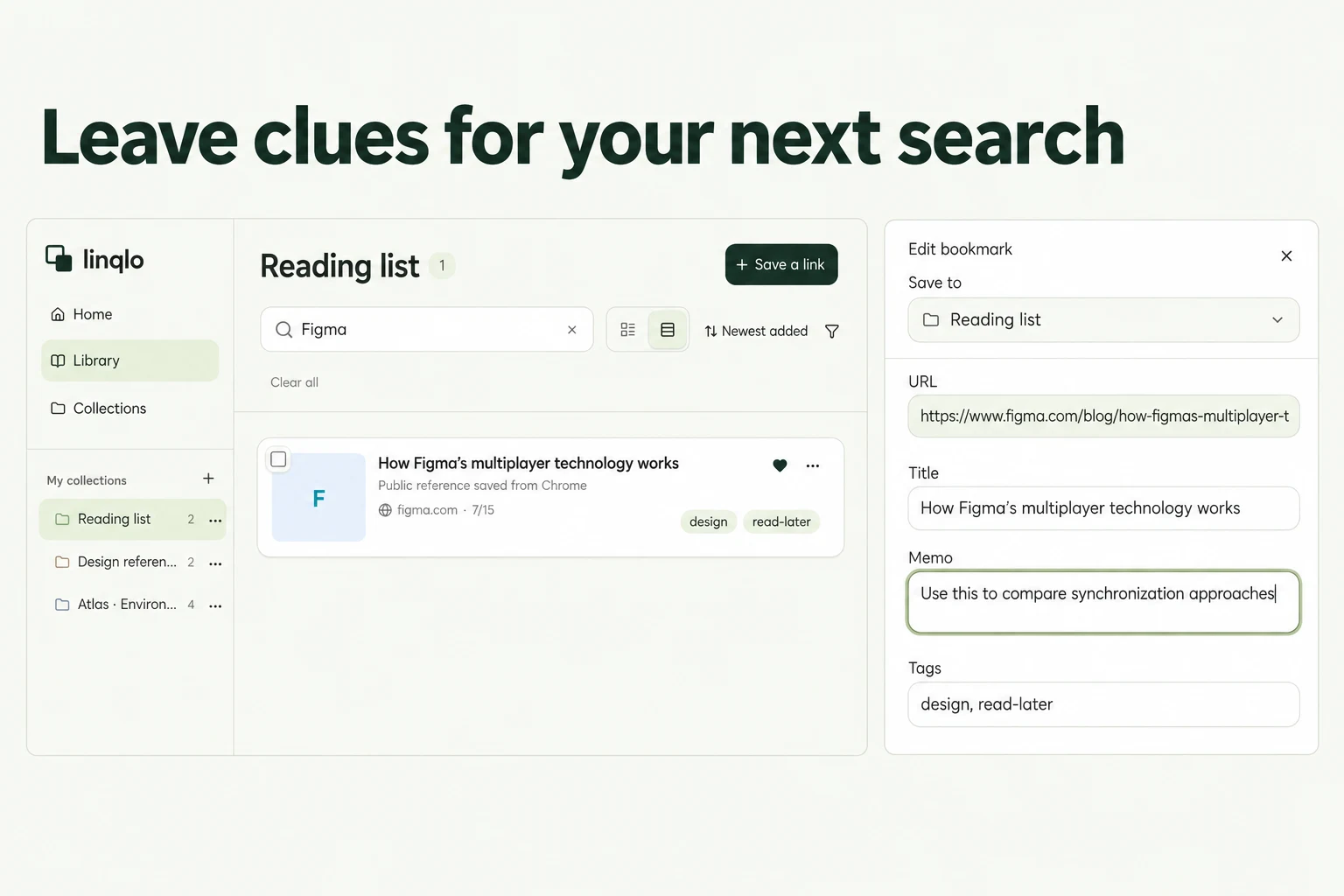
Find the saved link in the list. Edit the title if it needs a clearer name. For a long article, add a note such as “Start at the comparison table.” This is your own reading cue, not a setting that automatically scrolls to that section.
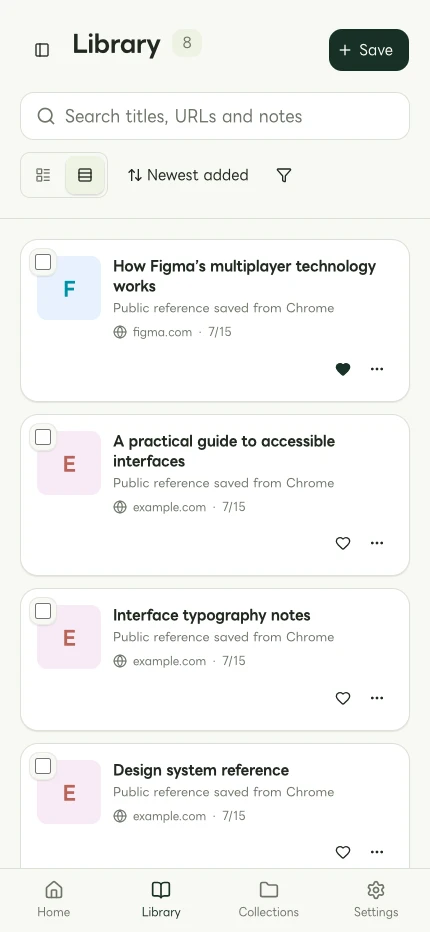
An example of the mobile web layout. It is not a native-app screen or evidence of a save being verified across devices.
Open the same account and workspace on your computer
Sign in to linqlo in Chrome or Safari on your computer. Choose the account and workspace you used on your phone, then find the link by its title or URL. Open the original page and check that it contains what you wanted to read.
Finding a bookmark and gaining access to its destination are separate checks. A members-only article or social post may require you to sign in to that service on the computer too.
Use the saving method available to you
Copying the URL into the web app is a straightforward way to check where a link goes. If you already have an available linqlo sharing option or supported extension, you can save through that instead.
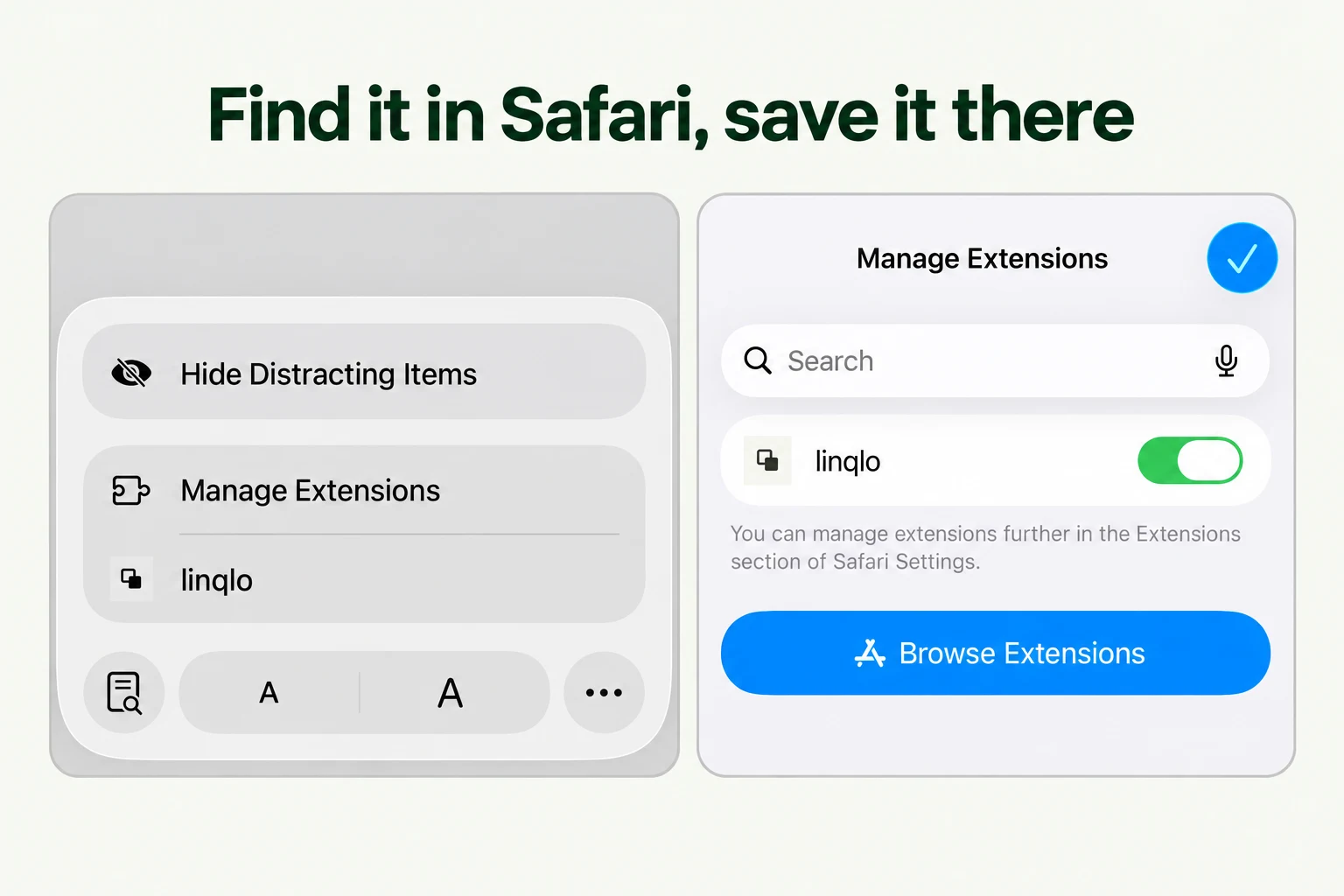
An operating-system share menu and Safari's extension menu are different entry points. For Safari setup, see the Safari extension saving guide. Whichever method you use, confirm the intended URL appears in linqlo afterward.
If the URL disappears after you leave to sign in, copy it again from the original page. Opening a share menu alone does not establish that a link was saved.
If the link is missing on your computer
| What you see | What to check |
|---|---|
| The whole list looks different from your phone | Whether you signed in with a different account or email address |
| Same account, but the link is missing | Whether you selected a different personal or team workspace |
| You believe the link is in this workspace | Clear the selected collection, search query and tag filters |
| It is also missing on your phone | Whether saving finished, or you only used the browser's own bookmarks |
| It is in linqlo but the source will not open | Source login, visibility, changed URL or deletion |
After a connection error, look for an existing copy of the URL before adding it again. Once the account and filters are correct, reload the list.
The return trip works the same way
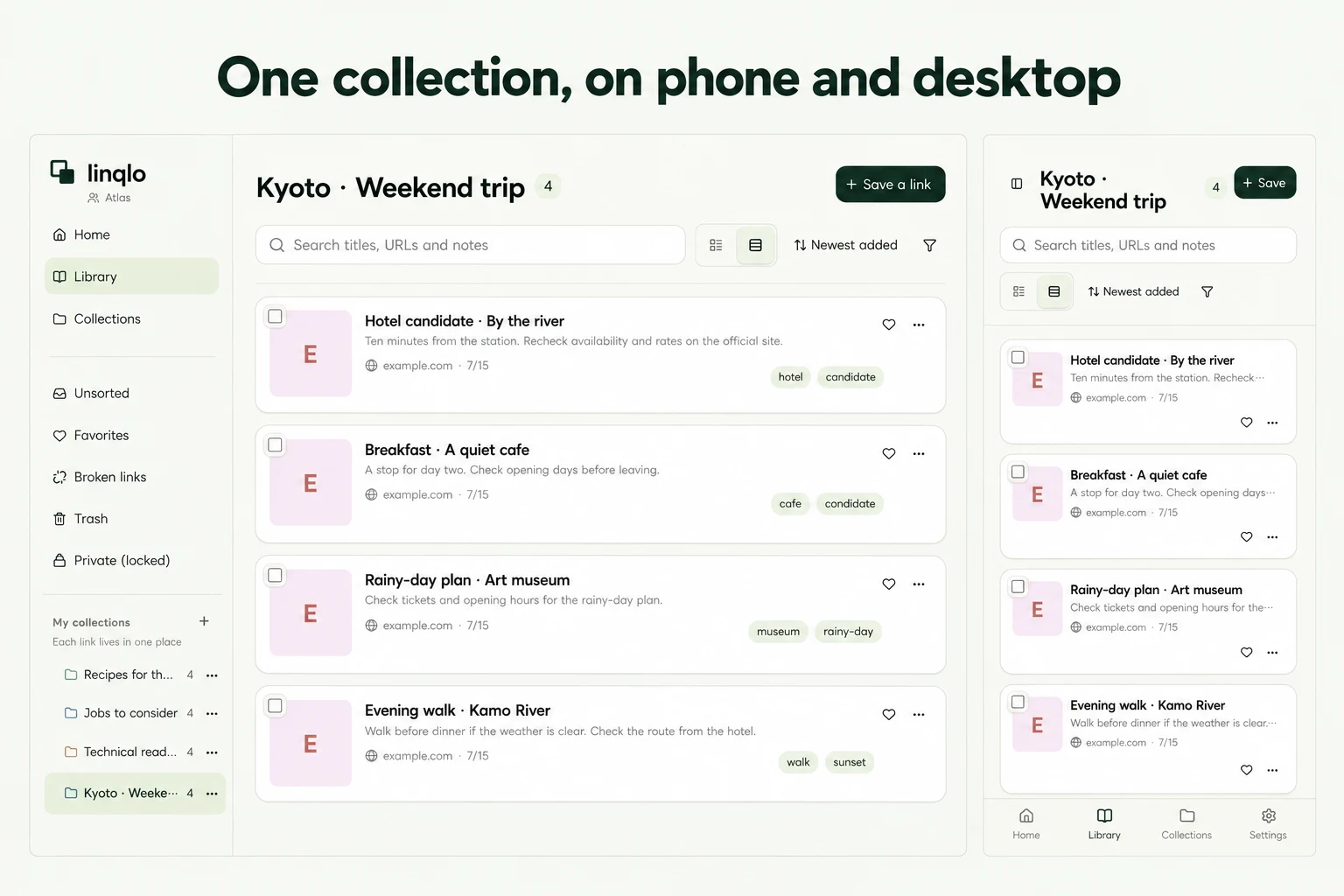
For a link saved on your computer, open the same linqlo account and workspace on your phone. You do not need separate collections for each device. Names based on purpose, such as “Work references” or “Trip ideas,” remain useful on either screen.
How this differs from browser bookmark sync
Clicking Chrome's star or adding a Safari favorite does not add a bookmark to linqlo. This workflow uses the links you save in linqlo as a common list. It does not automatically make each browser's built-in bookmarks identical.
To move older bookmarks in a batch, see organizing bookmarks and preparing an HTML import. If you only need a few links from your phone today, you can start with those without migrating everything first.
Put the guide into practice.
Create a free account to get started. No credit card needed.
Bring your links together for free