For you
Save pages with the linqlo Safari extension on iPhone
Saving a page from Safari on iPhone requires two separate preparations: enable the linqlo extension in Safari and share your sign-in from the linqlo app. Then open linqlo from Safari's page menu to save the current URL. Start with one public page and check that you can reopen it after saving.
Check the app and device requirements
Install the linqlo iPhone app that includes the Safari extension. The official App Store listing provides compatibility information and describes Safari extension support. The listed requirement checked on October 3, 2026 was iOS 16.4 or later; use the store's current requirements when installing.
This guide covers Safari on iPhone. Its Safari screenshots are examples captured in the iOS 26.2 Simulator, so your OS or distributed app version may look different. They do not demonstrate a completed save or synchronization test on a physical device running the current release.
If the extension is unavailable, you can still copy the page address from Safari and save the URL in linqlo's Web app.
Enable linqlo in Safari
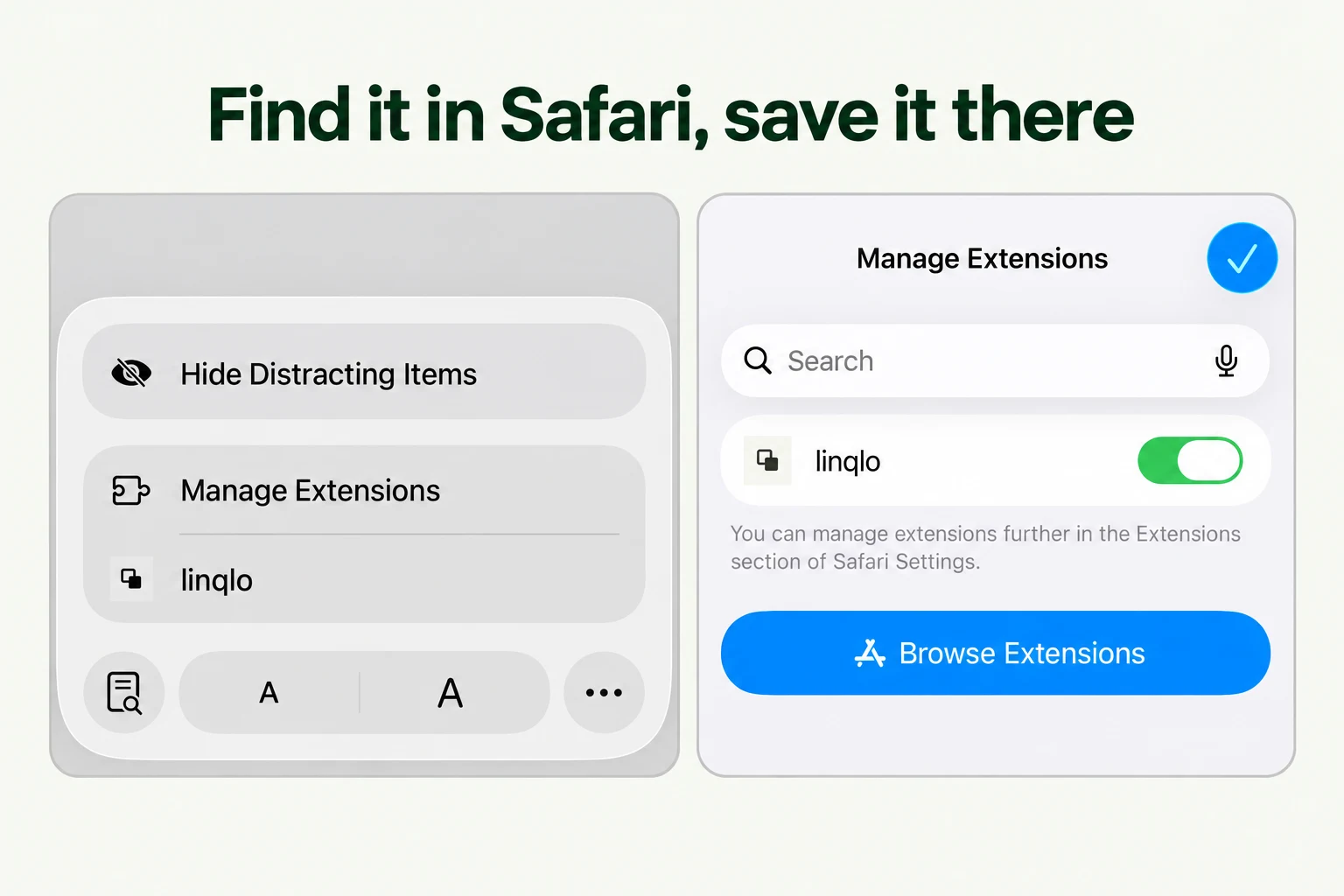
Open a webpage in Safari, enter the page menu, and use Manage Extensions to turn on linqlo. You can also check it in the Settings app under Apps → Safari → Extensions.
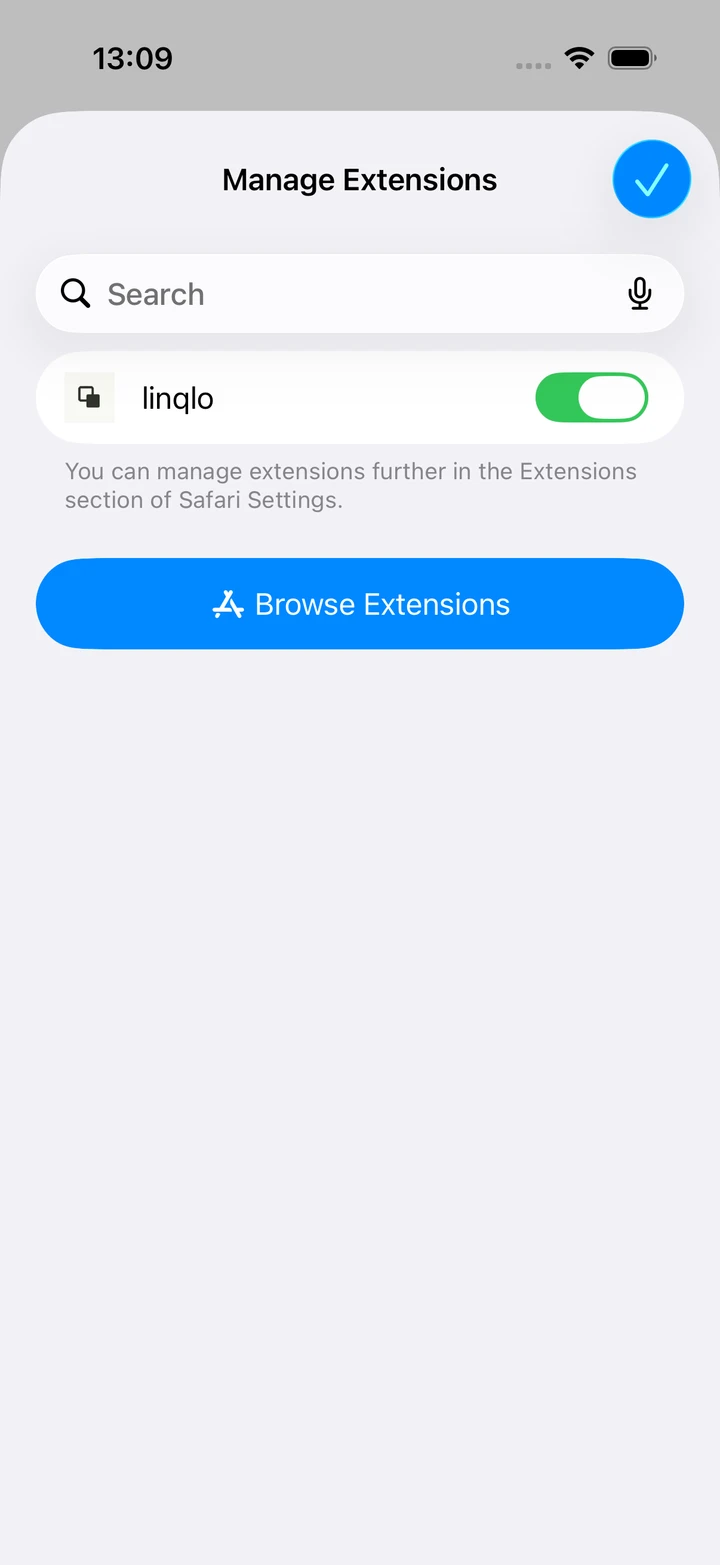
An extension-settings example captured in the iOS 26.2 Simulator.
If you use several Safari profiles, check that the extension is enabled for the profile you are currently using. For a problem on one website, review that site's extension settings too. Read the requested permissions and choose the scope you intend to allow. See Apple's Safari extension guide for OS-specific instructions.
Sync the sign-in connection from the app
Sign in to the linqlo app, then open the account area from the bottom tab bar. Find the extension-connection section and use its sync action. Check that the app reports that sign-in information has been shared.
That status confirms the app has saved the shared-login information. It does not mean the Safari extension has been enabled or that a page has been saved successfully. If you change accounts or the extension asks you to sign in, check the account in the app and sync the connection again.
Save one page you are reading
Open a public article you want to read later in Safari, then try the complete path:
- Check the article and its address in Safari, then choose linqlo from the page menu.
- Check that the domain and title shown in the extension match the article you intended.
- Check the destination collection, then save. For example, choose Read later.
- After the completion message, find the article in linqlo's list and open it to confirm that it reaches the same page.
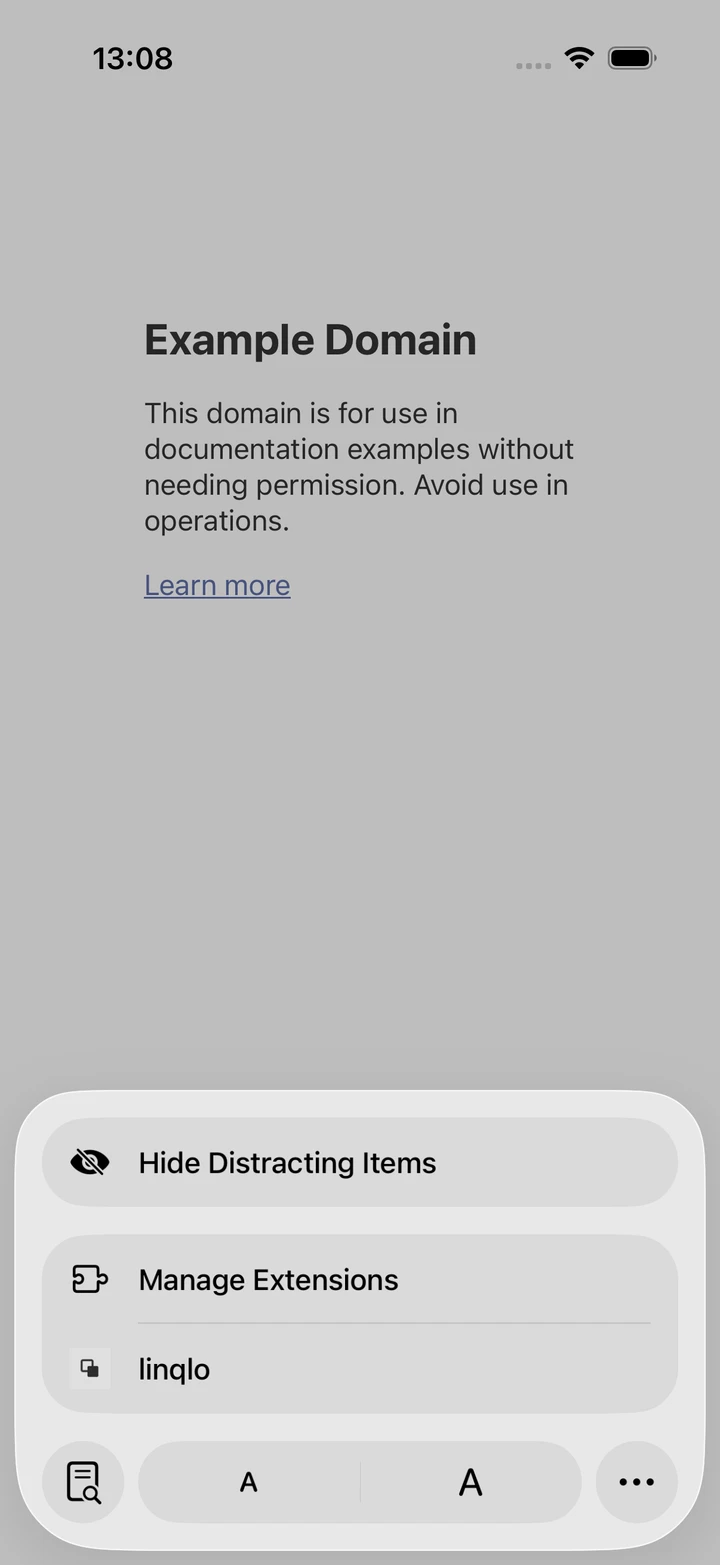
A page-menu example from the iOS 26.2 Simulator. This is a different entry point from the OS share sheet.
To record why you saved it, edit the bookmark afterward and add a note such as “Read when planning the next design.” Check the destination itself rather than relying only on whether a preview image appears.
Match the symptom to the setting
| What happens | What to check first |
|---|---|
| linqlo is missing from Safari | The supported app is installed, the extension is enabled, and the current profile allows it |
| The extension asks for sign-in | The app is signed in and its extension connection has been synced |
| It fails on one website | Safari's site-specific settings and whether the page itself is accessible |
| The saved link is missing | The selected workspace and collection, plus active search or tag filters |
| Saving returns an error | The connection and whether the URL is already in your list |
Copying the Safari URL and trying the Web app can help distinguish an extension-connection problem from a page or destination problem. A source page that needs a login will still require that site's authentication when reopened.
For using the saved link on a computer, see bookmarks across browsers and devices. For links coming from social apps, use the guide to organizing social and Web links.
Put the guide into practice.
Create a free account to get started. No credit card needed.
Bring your links together for free