For you
Organize technical articles with tags and saved views
For an ongoing collection of technical articles, tag links by topic and purpose, then save filters you use repeatedly as views. Note the source's target version and why you will use it, so you can return when implementing something. A saved view is a way to revisit your saved references through consistent conditions.
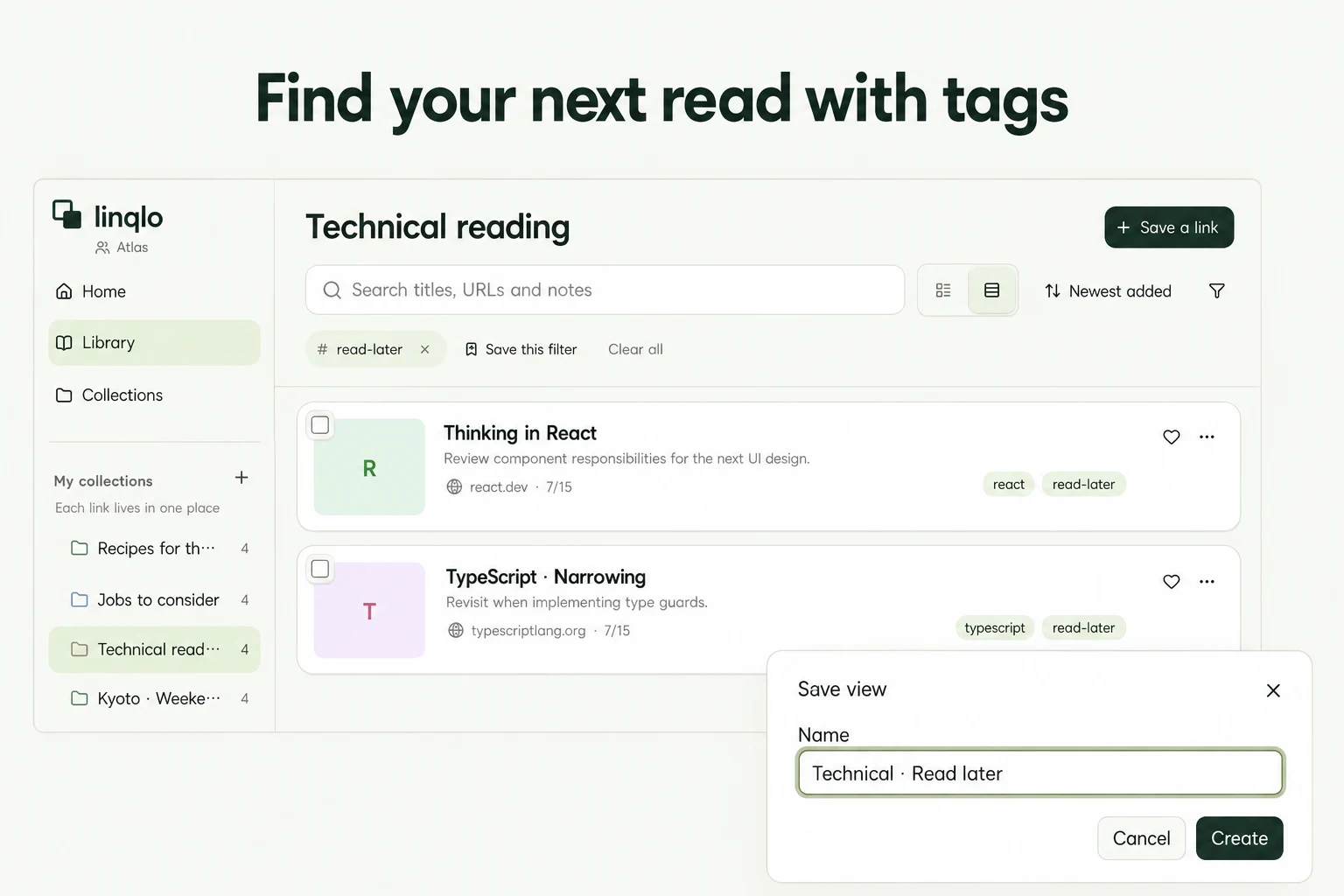
Different sources need different notes
An official reference, a tutorial and someone's experiment can all cover the same topic while serving different purposes. Save the reference to check a specification, the tutorial to understand a process and the experiment to test a result in your own environment.
This fictional example concerns a project improving interface accessibility. It does not evaluate actual articles or technical claims.
| Source | What to note | When to return |
|---|---|---|
| Official documentation | Target version, relevant section and basis for the specification | When deciding how to implement something |
| Implementation tutorial | Assumed setup, useful steps and differences from your project | When planning the work |
| Independent experiment | Author's environment and results, plus what you have not tested | When attempting a small reproduction |
A recent publication date does not establish compatibility with your project. “Target version not checked” is more useful than silently assuming the instructions apply.
Tag the topic and the intended use
Save a few relevant URLs in a “Technical reading” collection. After saving, edit their titles, notes and tags. Choose “Detailed entry” if you want to add those details before saving instead.
Use topic tags such as “react” or “accessibility,” and purpose tags such as “read-later,” “test” or “implementation-reference.” Not every article needs every tag. Avoid maintaining two labels with the same meaning unless you genuinely use them differently.
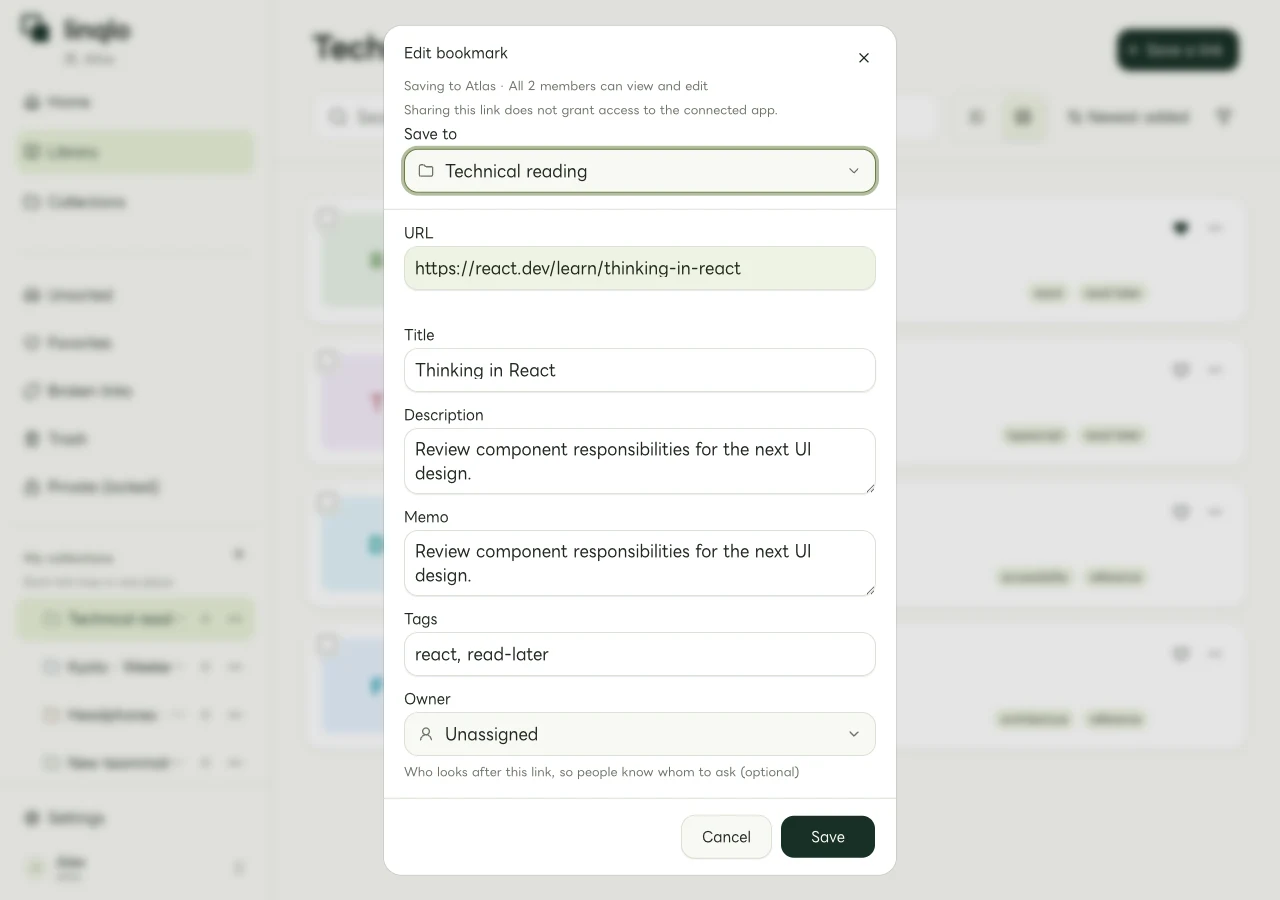
Example data in the technical-article editor.
Save a filter you return to often
Suppose you often want the links tagged “read-later” inside “Technical reading.” Save that combination:
- Open the collection and filter by the intended tag.
- Check for any remaining search query or domain filter. Keep only the conditions you want and inspect the results.
- Choose “Save this filter” and name it “Technical · Read later.”
- Open the view from the sidebar and check that it restores the expected filter.
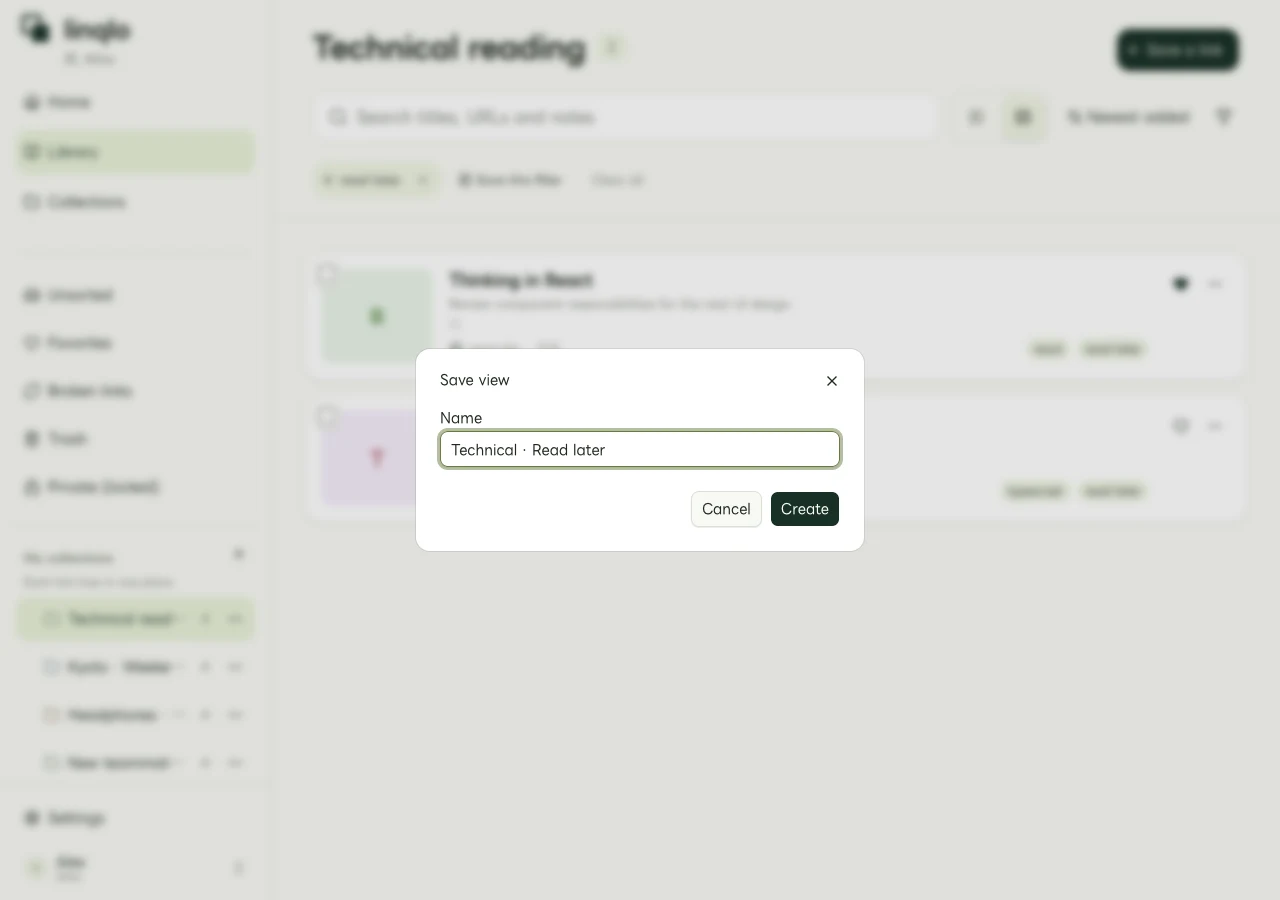
An example of the saved-view dialog. Names and tags shown are sample data.
A view retains conditions such as query, tags, type, domain, collection and sort order. It does not create copies of the articles currently listed.
To check the behavior, save another reference in “Technical reading” with the matching tag, then reopen the view. If collection and tag were your only filters, the new reference also qualifies. A link with the same tag in another collection does not match the collection condition.
The view does not gather newly published articles from the internet. You still save the URLs you want in your library.
If a saved article is missing from the view
Check all the conditions, rather than only its tag:
- Search query: Does the new reference match the words still in the filter?
- Domain: Are you excluding an explanation from a different website?
- Collection: Did you save it in the intended place?
- Tags: Did you use a different label, such as “unread” instead of “read-later”?
Return to the ordinary list and look for the URL. That separates a saving problem from a filter mismatch. Removing unintended filters before creating the view helps avoid confusion later.
A short note for future implementation
- Purpose: The question or decision this source helps with
- Source role: Official specification, instructions or an experiment
- Assumptions: Version, environment and anything unknown
- Relevant location: Heading or section name
- Your checks: What you tried and what remains untested
- Checked date: When you consulted the original
After using a source, update one line: “Refer to this section during implementation,” or “Still untested in our setup.” An expanding library is easier to reuse when each reference retains its purpose.
To choose a manageable next reading session, continue with finishing a read-later list. For help choosing collection and tag names, see bookmark organization basics.
Put the guide into practice.
Create a free account to get started. No credit card needed.
Bring your links together for free