For you
Save and organize Instagram post and reel links
Save an Instagram post or reel URL in linqlo with the shop or product name and a note about what caught your attention. You can keep the venue's official website or a product page in the same collection, making it easier to move from a photograph to a practical decision. This workflow saves a link to the post.
Open the specific post you want to revisit
First choose whether you need an account's profile or the particular post showing a menu item, product, or place. Those are different destinations.
For example, a cafe may post several seasonal menus. Saving only its profile means searching again for the photograph you remember. Open the actual post about the autumn dessert before taking its link.
Use the post's sharing menu to copy its link. The position and wording of sharing controls may vary by device and Instagram version. If you already have the individual post open in a browser, you can copy that page's URL instead.
Save the URL, then make the title useful
In the linqlo Web app:
- Sign in and check your workspace.
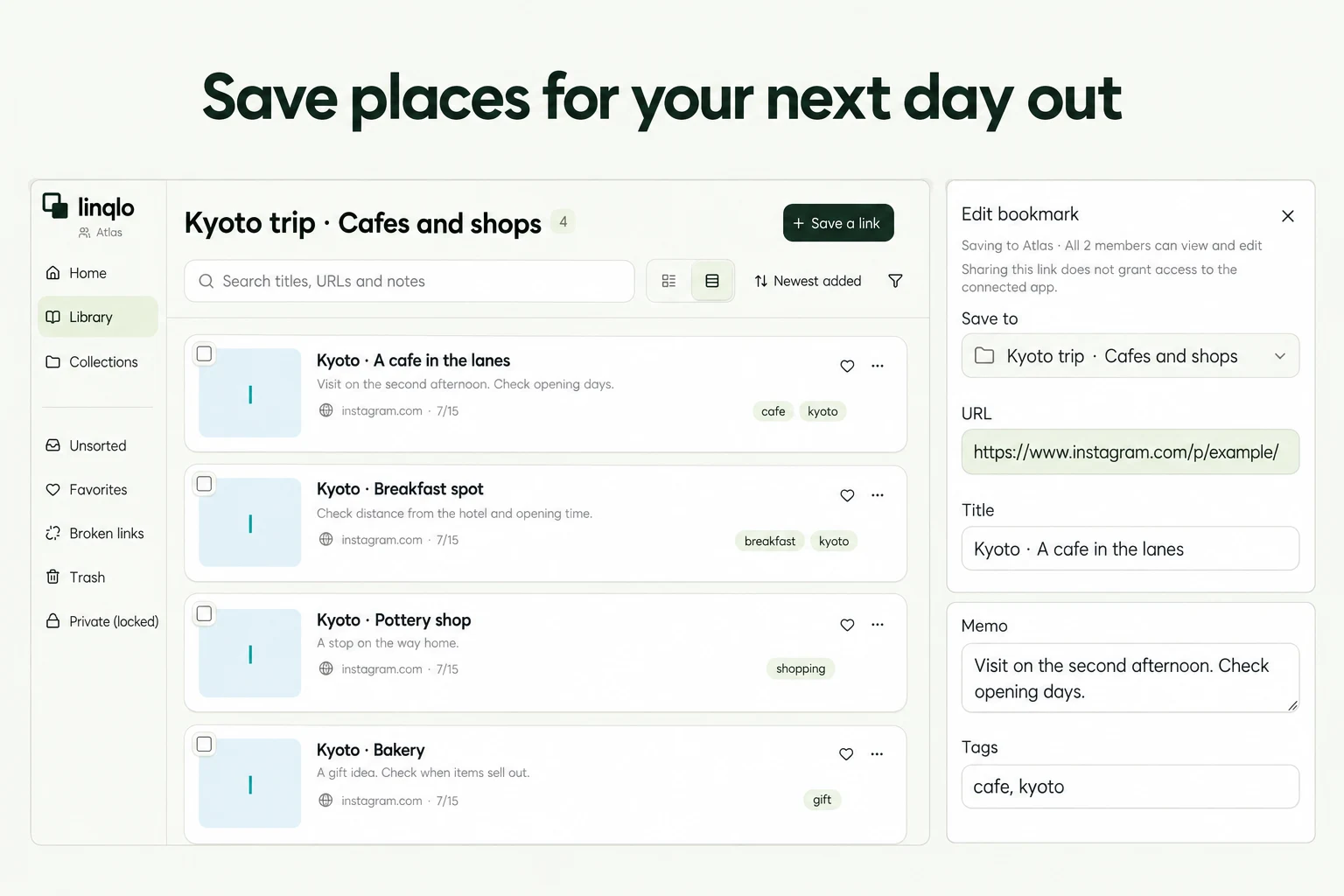
- Open the add-URL form, choose the destination collection, paste the copied URL, and save.
- Edit the saved link to add a clear shop or product name and your note. To enter these details before saving, choose “Detailed entry” in the add-URL form.
- Return to the list and reopen the link to check that it reaches the intended Instagram post or reel.
If a supported linqlo app appears in the OS share sheet, you can send the link there. Otherwise, copying and pasting into the Web app provides another route. This does not import Instagram's saved-post list; add the posts you need individually.
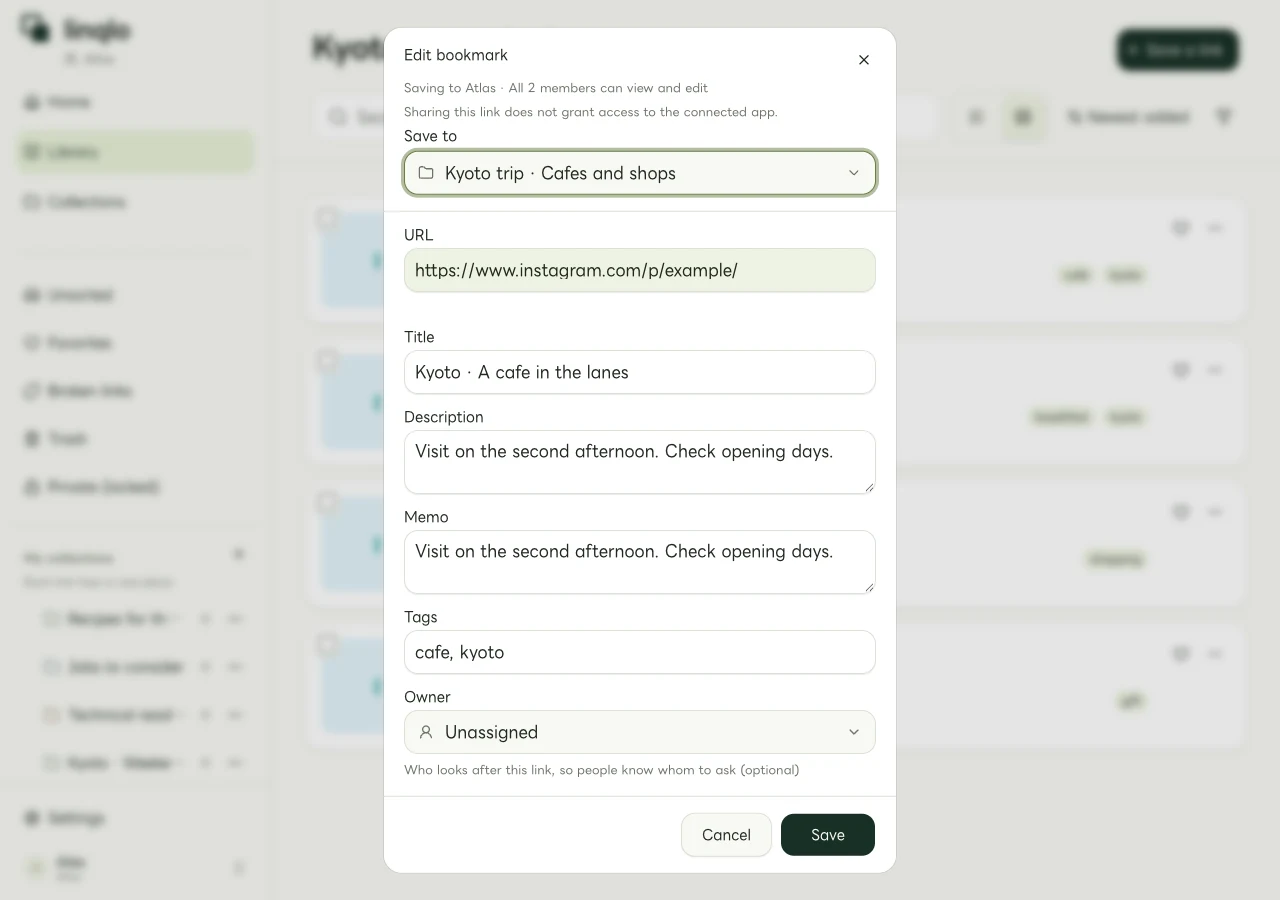
An example of adding a title, note, and tags to an Instagram link in the Web app. The venue details are fictional.
Record the detail that caught your eye
“Interesting shop” and “want to go” become hard to distinguish as your list grows. Write the specific reason you would return to the photograph or reel.
| Content to save | Example title | Example note |
|---|---|---|
| Cafe post | Kyoto cafe candidate: window seating | Like the bright seats in the photo. Seat reservations not checked. |
| Product reel | Desk lamp candidate: adjustable arm | Rewatch how the arm moves. Check dimensions on the official page. |
| Gift recommendation | Individually wrapped baked-goods set | Possible gifts to hand out. Check current sellers and shelf life. |
These are illustrative notes. Keep your impression separate from what the post actually says and what remains unverified. An old photograph alone does not establish that a seat or menu item is still available.
Add an official page for the practical questions
For a cafe, save its official hours and access page. For a product, save a manufacturer or retailer page with the model and dimensions. Put it in the same collection as the Instagram post, using “official” and “post” in the titles to distinguish their roles.
For travel ideas, continue with organizing hotels, restaurants, and attractions. For places near home, use an occasion-based restaurant list. For products, the shopping-link comparison guide helps separate visual appeal from purchase requirements.
If the image is missing or the post will not open
An incomplete preview does not tell you whether the URL was saved correctly. Give the link a recognizable title and open the original to check. A thumbnail is not proof that the full images or video have been downloaded.
Posts from private accounts need to be opened through an Instagram account allowed to view them. Deletion or visibility changes may make a post unavailable, and saving its URL in linqlo does not change those conditions. This guide covers regular posts and reels; it does not rely on time-limited stories remaining available later.
If a link opens a different post, return to the intended one and copy its link again. Naming the shop and the particular detail before you move on also makes mistaken links easier to notice.
Put the guide into practice.
Create a free account to get started. No credit card needed.
Bring your links together for free