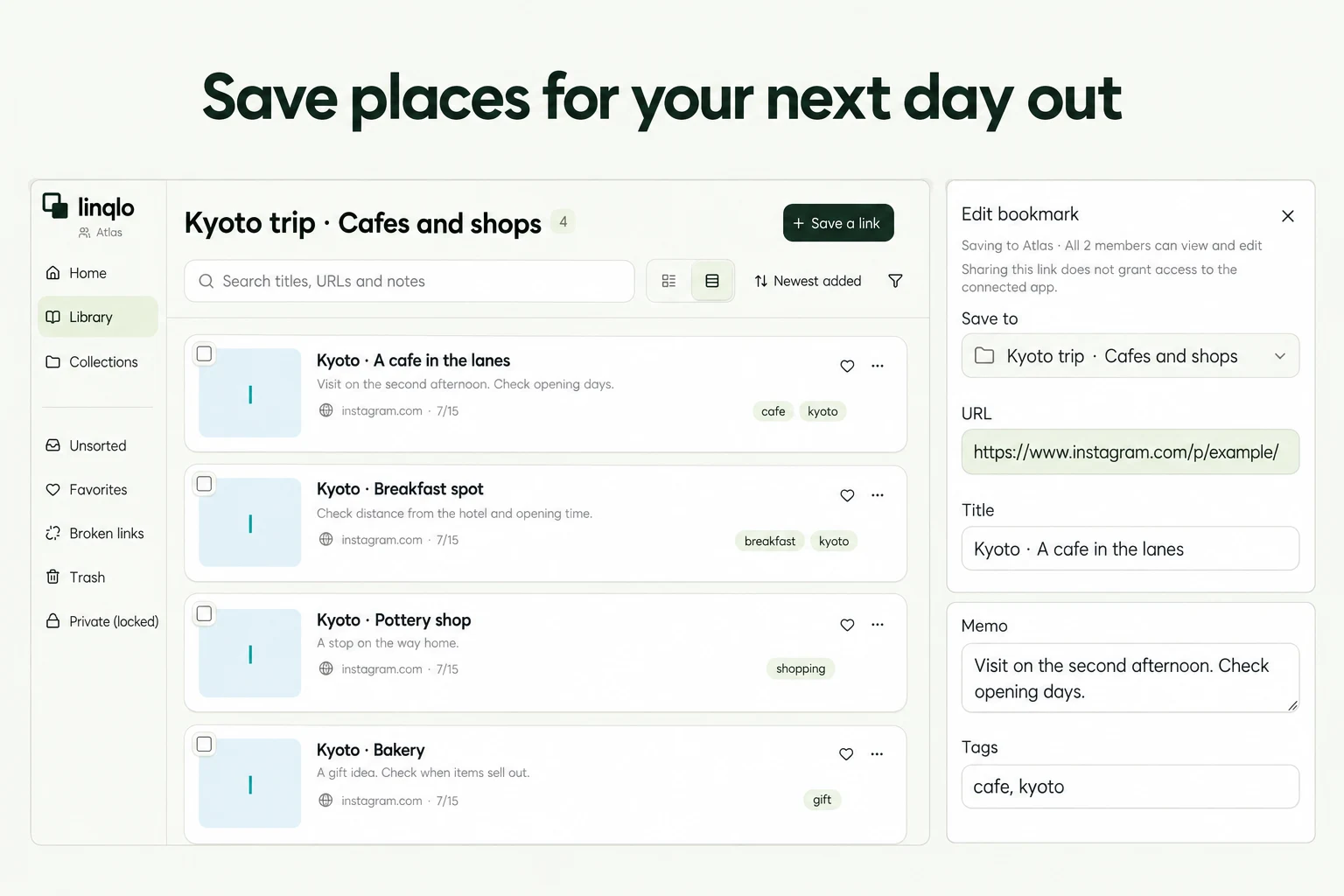
For you
Organize travel research with hotel, restaurant, and attraction links
Organize travel research by saving hotel, restaurant, and attraction URLs in one trip collection, with a short note about why each place fits and what still needs checking. linqlo lets you keep booking pages, social posts, and official venue information together. Start with three options you are actually deciding between for your next trip.
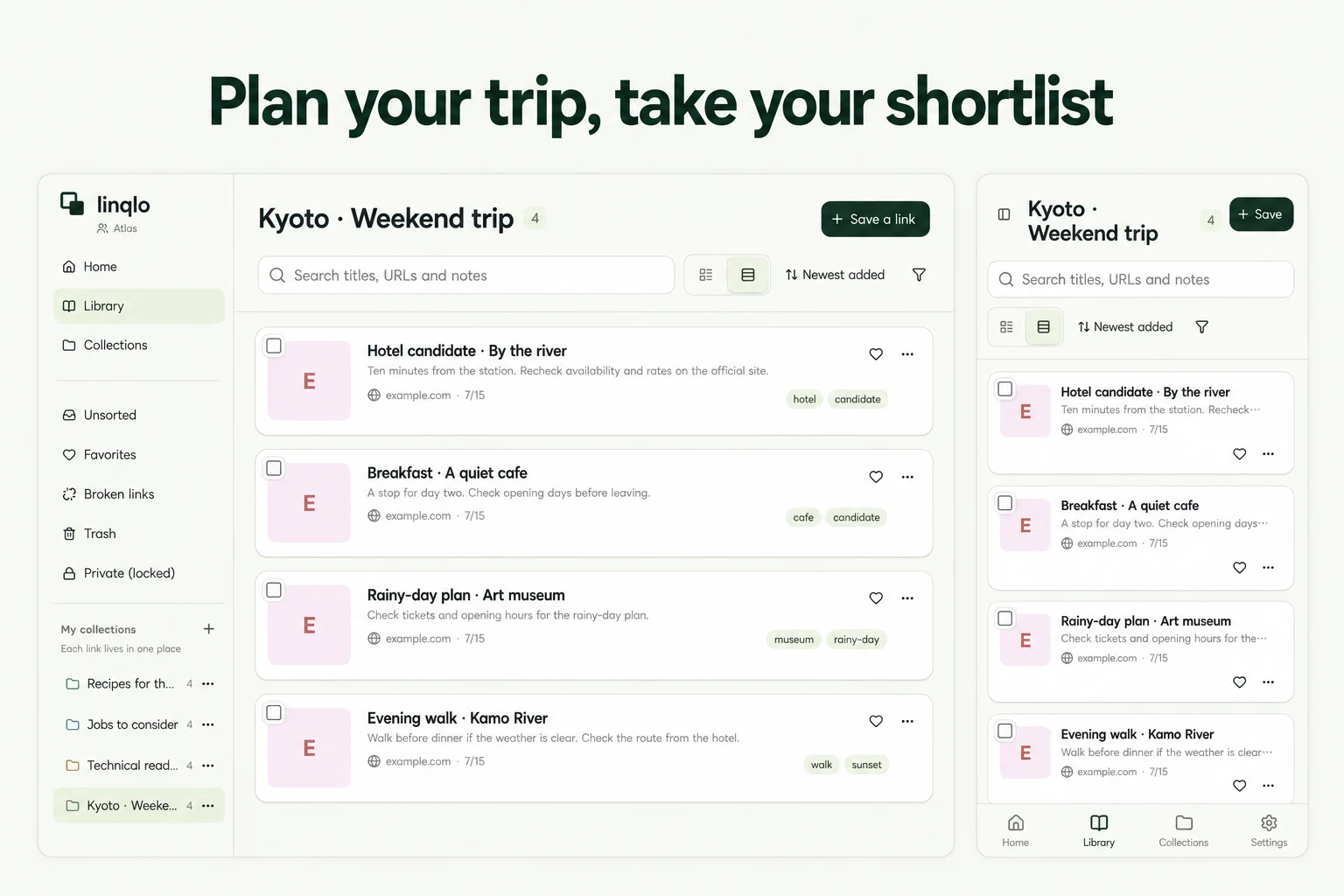
Give each trip one home
Create a collection such as “Kyoto · Weekend trip.” If this is personal research, check that you have selected your personal workspace before saving.
You do not need separate collections for every day, neighborhood, and meal before the itinerary takes shape. Keep the trip together and use a few tags for useful filters: hotel, cafe, museum, or rainy-day. That leaves room to change your plans without reorganizing everything.
For a webpage, open the add-URL form, choose “Detailed entry,” then check the URL, title, and collection before saving. For a place discovered on Instagram, follow the post and reel link-saving guide. Choose the same trip collection regardless of where you found the idea.
Separate the appeal from the unanswered question
A beautiful photograph and a suitable booking are different things. Here is a fictional example for a two-night trip:
| Page to save | Why it made the shortlist | What to check next |
|---|---|---|
| Hotel's official page | A possible walk from the station | Rate for the travel dates, luggage storage, cancellation terms |
| Cafe recommendation post | A stop after the museum | Opening days, last orders, whether reservations are needed |
| Official exhibition page | An indoor option for a rainy day | Exhibition dates, closed days, timed-entry requirements |
A useful hotel note might read: “Prioritize station access. Luggage storage not checked. Recheck the rate with our dates.” It gives you a next step that “looks nice” does not. Once you check a detail, update the note and record when you checked it, such as “Official site checked October 3.”
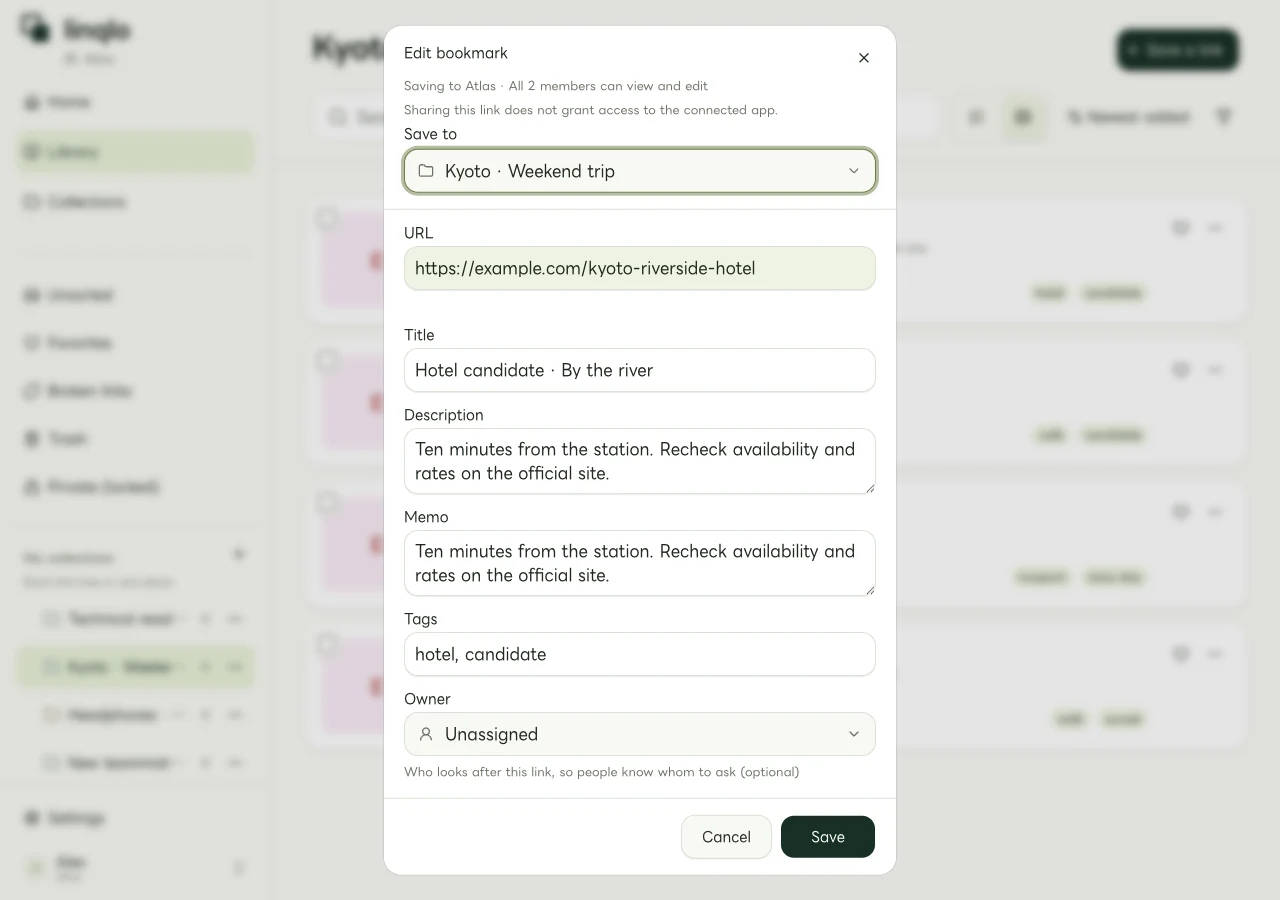
Actual Web editor showing a fictional Team workspace. Save personal candidates in your own workspace.
Keep the social post that sparked your interest, then add the venue's official page separately for practical checks. Labels such as “official page” and “recommendation post” in the titles make the two links' purposes clear.
Turn options into a possible day
Filter by a tag such as cafe, then consider priorities and travel time. Add your own planning note, such as “after Saturday's museum visit” or “rainy-day alternative.”
If an afternoon exhibition is the priority, choose nearby stops around it. Check distances and journey times in a mapping service, and entry slots or booking conditions on the official site. The order of saved links is not evidence that the route is practical.
For a trip centered on an exhibition, the guide to keeping exhibition dates and visit requirements together provides a more focused checklist. Decide which experience matters most before collecting another dozen alternatives.
Test the shortlist on your phone before leaving
While online, sign in to linqlo on your phone and select the same account, workspace, and trip collection. Open a hotel, a restaurant, and an attraction to check that you can return to the intended pages.
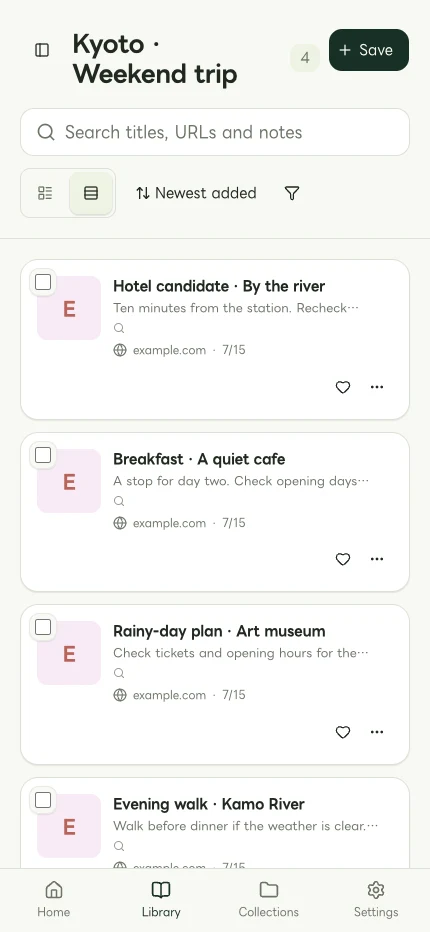
The trip collection viewed in a mobile Web browser.
Keep reservation numbers, checkout pages, and personal booking-management URLs out of this candidate list. Use the booking provider to manage those details. If you need confirmations or directions without connectivity, prepare them separately using the relevant service's supported options. Saving a URL alone does not ensure the original page will open offline.
Recheck details when a decision is due
A saved price or opening time is a record of what you saw, not a live update. Before booking and again before visiting, reopen the source and check the date, party size, availability, price, and relevant cancellation terms. A date typed into a linqlo note does not create an alert.
If a candidate is missing, check the trip collection and workspace, then clear search terms or tag filters. If the link is present but the page will not open, check the source site's login requirements or whether its URL changed. See organizing links across social apps and the Web for a broader approach to combining inspiration with official information.
Put the guide into practice.
Create a free account to get started. No credit card needed.
Bring your links together for free