For you
Organize YouTube learning videos with timestamps and reference links
A YouTube learning video is easier to return to when its URL comes with a timestamp, an unanswered question, and something to try next. Save the video and its supporting articles in one linqlo collection so you can check a spoken explanation against the official reference. Begin with one video and one useful source.
Give the video and the article different jobs
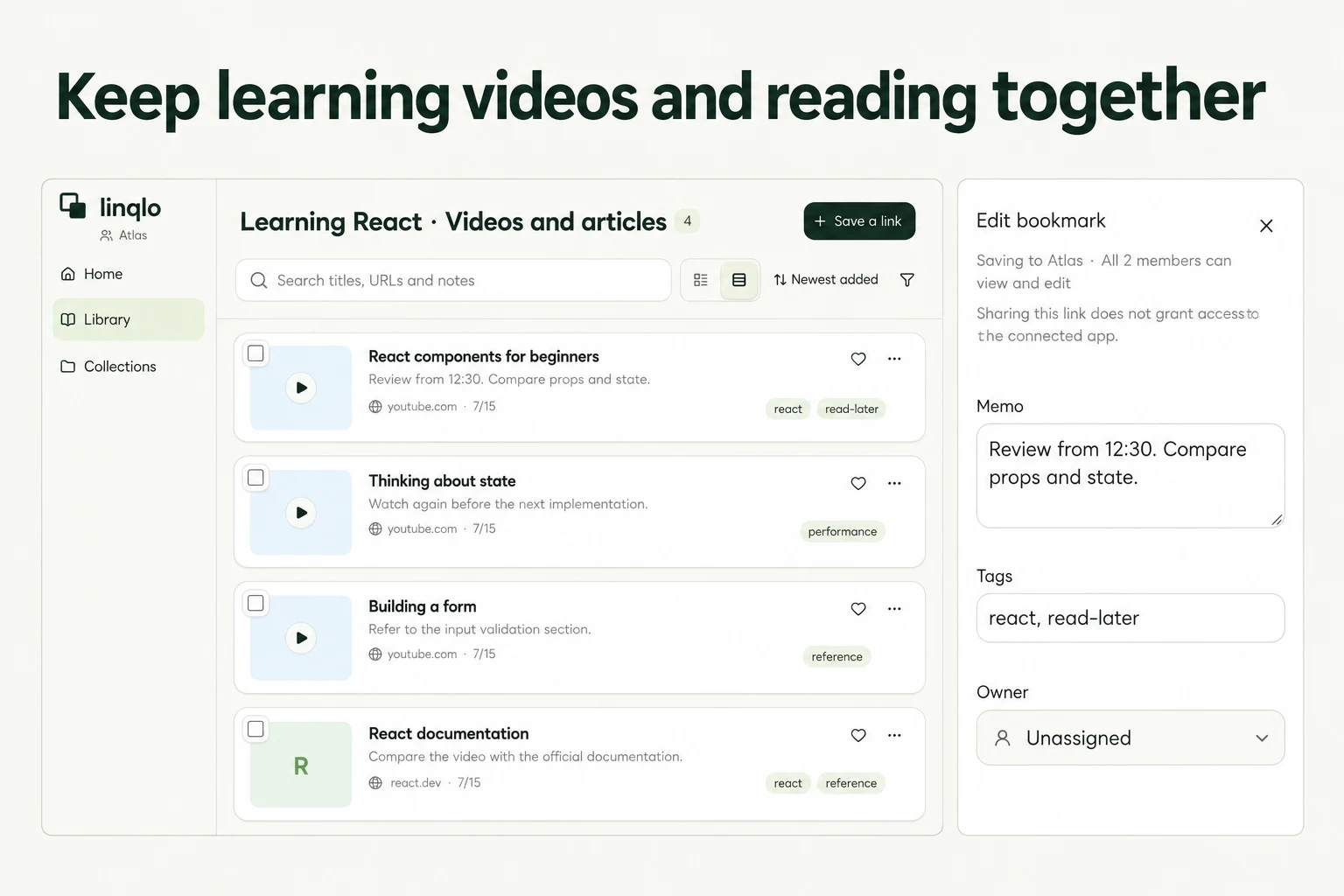
When learning React, for example, a video can show the implementation sequence while official documentation clarifies terminology and requirements. Create a collection such as “React learning · Videos and articles,” and add sources that answer the same question.
Decide whether you need a whole channel or a particular explanation in one video. This guide starts with the individual video you are studying. Before collecting more recommendations, write one sentence describing what you want to understand; it becomes a useful filter for choosing supporting material.
Save the video URL and note the time
- Open the video on YouTube and copy its link from Share.
- In the linqlo Web app, check your account and workspace. Choose the collection in the add-URL form, paste the link, and save.
- Edit the bookmark to add a recognizable title and a note with the time you want to revisit. To enter these details before saving, choose “Detailed entry.”
- Add the official documentation or supporting article as a separate link in the same collection.
If a supported linqlo app appears in the OS share sheet, you can send the link there. Otherwise, use the copy-and-paste route in the Web app.
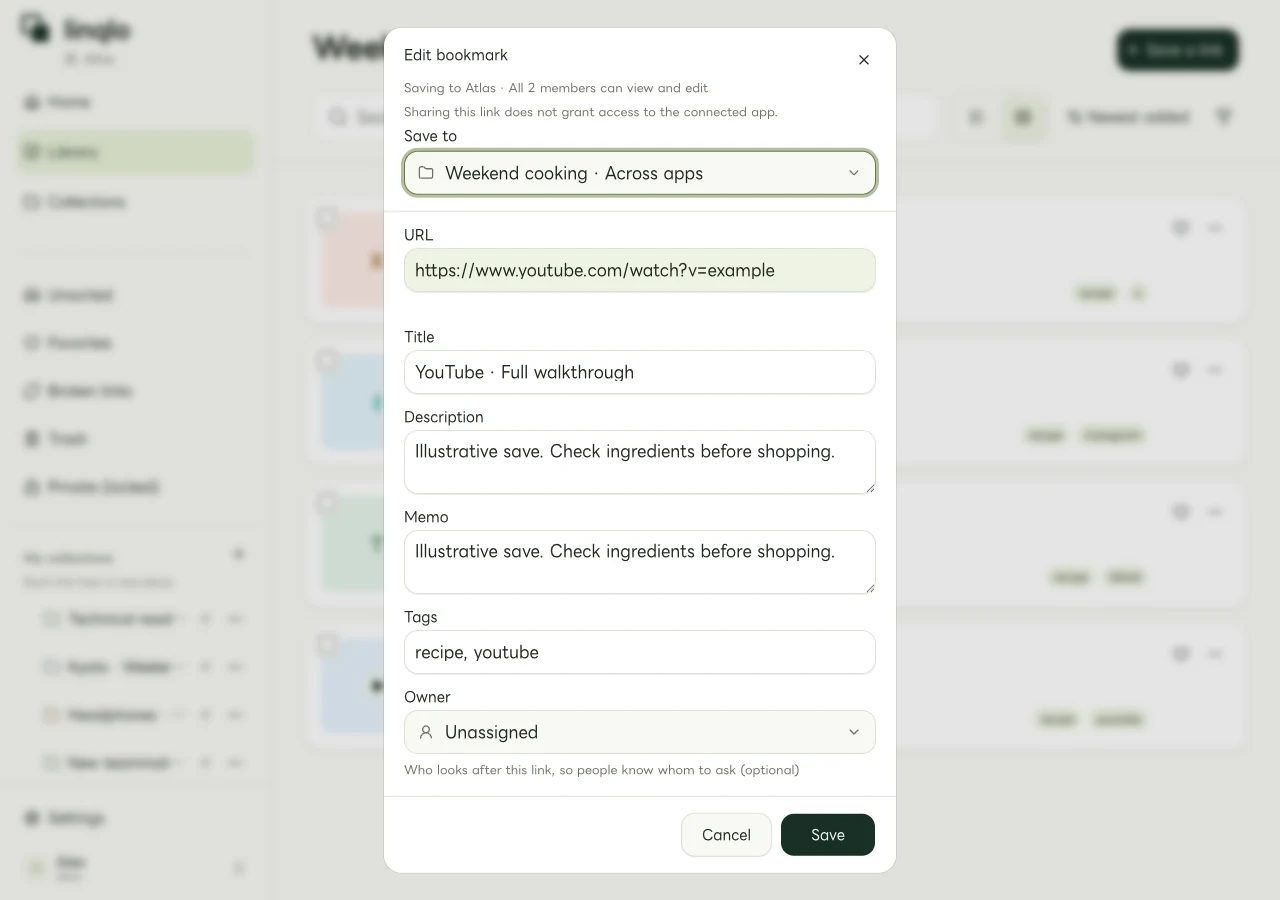
The example note says to review from 12:30 and compare props and state. The video URL and other sample details are fictional.
Write what happens at 12:30
Here is a fictional note for a lesson about React components:
- Revisit: 12:30, the explanation comparing props and state.
- Question: which values should come from a parent, and which belong inside the component?
- Read alongside it: the relevant section of the official documentation.
- Try next: use a small input form to test one choice about where a value lives.
A time on its own does not preserve why the passage mattered. The question and next action help you choose the relevant explanation before replaying the whole video. For technical material, also check the video's date and version against current official documentation before using the advice in an implementation.
For a language-learning video, you might write “12:30: practise asking someone to repeat an order.” Adding the situation makes the review more purposeful. See organizing language-learning review links for ways to turn saved material into practice.
Test timestamped sharing links after saving
If YouTube offers a start-time sharing option in your current interface, use it to generate the link. On a computer, YouTube's official help explains how to set the start time in Share before copying. Using the generated link avoids mistakes from adding URL parameters manually.
Reopen the saved link from linqlo and check its starting point. Keep the time in your note too, in case a device or opening method does not reach the expected position. If a timestamped share link is unavailable, an ordinary video URL plus “start at 12:30” still gives you a way back.
A timestamp in a note is a manual reference. It is not a setting that synchronizes playback history or viewing position between linqlo and YouTube. For a similar approach to audio, see podcast timestamps and reference links.
Update the note after reviewing
When the question is resolved, replace the stale “unchecked” note with what you established and a small next action. Keep “watched the explanation” separate from “tested it myself.” For an ongoing reference library, use the guide to organizing technical articles.
This workflow organizes URLs and manual notes. It does not automatically import Watch later or playlists, and saving the link does not store the video file. Deletion, visibility changes, or login requirements can affect later viewing. Keep a route to the supporting official source for important material as well.
Put the guide into practice.
Create a free account to get started. No credit card needed.
Bring your links together for free