For you
Save X posts and threads alongside technical references
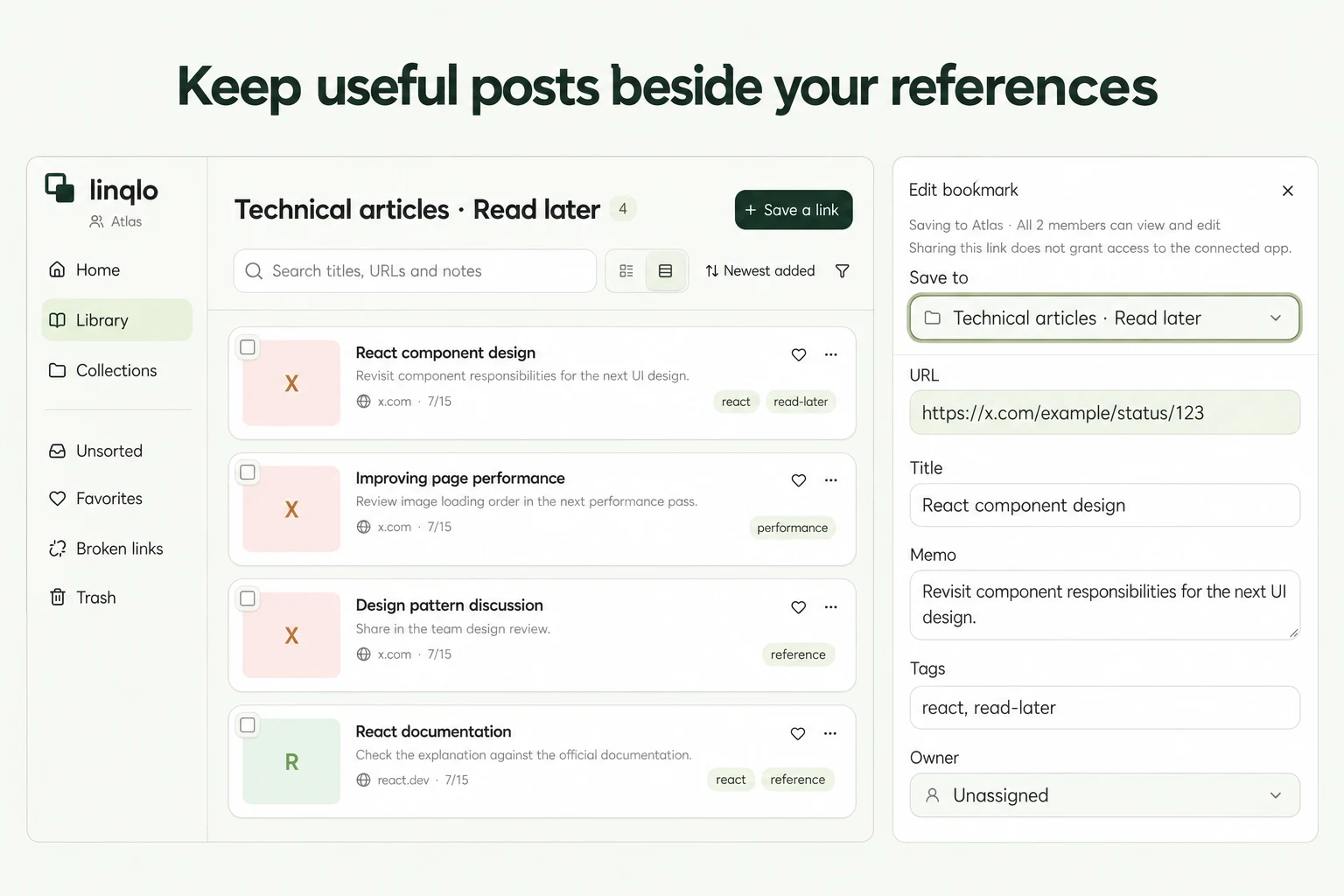
To use an X post in later research, save its URL alongside the documentation or article it points to. In linqlo, add one sentence explaining what you want to check. That gives you a practical starting point when you return to the topic. If the useful detail is halfway through a thread, save that individual post too.
Choose the part of the thread you need
Before saving, decide what you want to revisit. Open the first post for the thread's introduction, or the specific post containing a code sample, correction, or useful explanation. A profile URL will not necessarily lead you back to the same discussion later.
- For the overall explanation, save the opening post and note the topic that matters.
- For a code sample, save that post separately and name the example in its title.
- For a quoted claim, distinguish the quote post from the original post.
- For a linked source, save the documentation or article as its own bookmark.
The first post is a route back into the thread. Saving it does not preserve every reply as one complete archive. Individual links make the passages you care about easier to identify.
Add the post URL to linqlo
- Open the post on X and use its share menu to copy the link. In a browser, you can also copy the address after opening the individual post.
- Check your linqlo account and workspace, then open the add-URL form, select “Detailed entry,” and paste the URL. If a supported linqlo app appears in the OS share sheet, you can send the link there instead.
- Choose a collection for the research topic, such as “Technical articles · Read later.” If the imported title is unclear, replace it with something recognizable, such as “React rerenders: an example to test.”
- Save, then reopen the item from your list to confirm that it leads to the intended post.
If linqlo is not a share destination, paste the copied URL into the Web app. Menu positions vary by device and X version; the important check is whether you obtained the individual post's link.
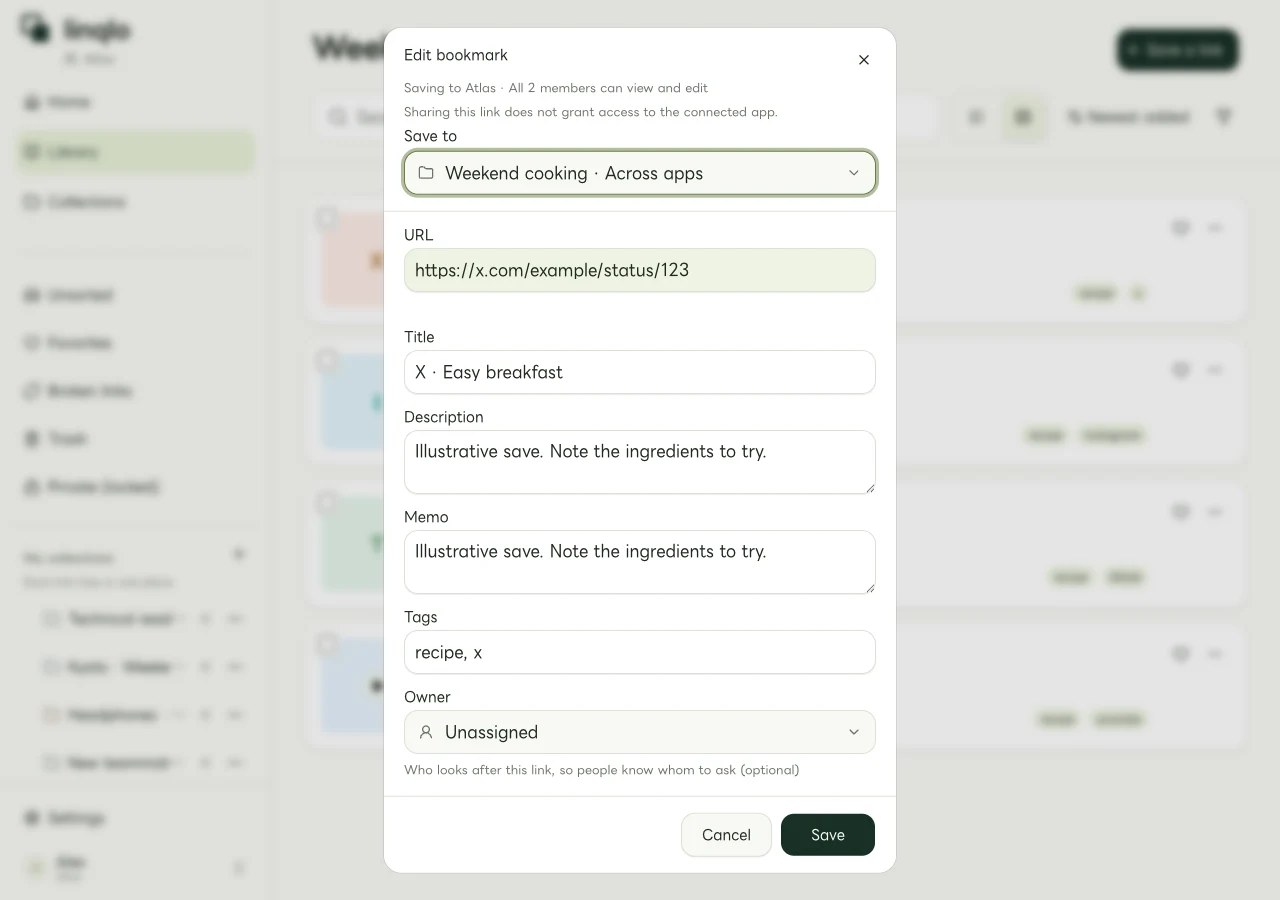
A sample X link in linqlo's Web editor, rather than an OS sharing screen.
Keep the author's claim separate from your test
Suppose you find a post about reducing React rerenders. A note saying only “makes it faster” loses the conditions and the question you meant to investigate. This fictional example keeps those distinctions clear:
| Saved link | Note to keep |
|---|---|
| X explanation | The author reports fewer renders under these conditions. Not tested in my screen yet. |
| Official documentation referenced by the post | Read the requirements and caveats; check the version we use. |
| Relevant implementation article | Compare its conditions with ours. Next step: try a small example. |
Use tags such as react and performance to group topics, and notes for the actual questions. For an ongoing reading library, see organizing technical articles with collections, tags, and saved views. If you plan to cite the material, use the method for connecting claims to their sources.
When to use X bookmarks or linqlo
X's own bookmarks are useful if you want to revisit posts inside X. X Premium also provides Bookmark Folders. The reason to use linqlo here is to organize posts with documentation, blog articles, videos, and other Web references for the same task.
This workflow adds selected posts one at a time. It does not import or automatically synchronize your X bookmark list.
A saved URL retains the source's access requirements
Protected posts must be opened through an X account authorized to view them. X explains the visibility of protected posts and their permanent links. A move to protected status does not necessarily make a post inaccessible to you, but saving its URL in linqlo does not grant permission to read it.
If a post is deleted, the bookmark may remain while the content is no longer available. When a link fails, check that it is the correct post, that you are using an X account with the necessary access, and that the original still exists. For an important claim, keep a direct route to the primary source as well as the discussion that led you there.
Put the guide into practice.
Create a free account to get started. No credit card needed.
Bring your links together for free