For you
Move useful newsletter articles out of your inbox
When a newsletter points you to something useful, open the public article and save its URL with a reason to return. In linqlo, that reason can connect the link to your work even when you no longer remember who sent the email.
Generated illustration using envelopes and a picture sheet to represent selecting something useful from a newsletter. It does not show email integration.
You remember the idea, but not the subject line
Perhaps you remember a clear explanation of how to draw connecting lines in a diagram. It arrived last week, somewhere in a design newsletter. The sender and subject line are less memorable. Searching the inbox becomes a second reading session, with other messages competing for attention.
An email groups things by when they arrived. Your future task may need a different unit: one article, one event, or one tool to try. Saving those useful destinations separately gives each a purpose outside the original issue.
There is no need to extract every link. Choose the ones whose future use you can explain. A single article with a useful note is often easier to work with than a copy of an entire newsletter.
Open the destination before saving it
Follow the newsletter link and check that you have reached the article you want. Save the URL of that page. A short link label in an email may lead to an article, a registration form, or a personalized page; they are different things to retain.
Keep unsubscribe, email-verification, and sign-in links out of your reference collection. Avoid carrying over URLs containing reader-specific information or links to personal registration and confirmation pages.
Do not remove unfamiliar parts of a URL just by guessing. Doing so can break the link or change its destination. If you are unsure, find the same article through the publisher's public website and use that public page. If no suitable page is available, you can leave the material in the original email.
Saving a members-only article's URL does not change its access requirements. This workflow organizes destinations you want to revisit and the notes you write about them.
Three links from one issue can have three different uses
Suppose a fictional “Design Weekly” newsletter contains a diagram article, an event announcement, and a tool introduction. The following examples are invented to show how the notes might work.
The diagram article belongs with your project references. Save its public URL in a “Diagram references” collection. A note might read: “Found in: Design Weekly example. Use when: making a process diagram. Reason to keep: revisit the approach to connecting lines.” Where you found it is helpful context; where you will use it is the main point.
The event link supports a decision about attending. Save the organizer's public announcement and write: “Check the current date and whether the format works for me.” Recheck the original announcement before registering. If you need a calendar entry or reminder, set that up separately in the tool you use for scheduling.
The tool needs a concrete trial task. Save its public introduction with: “Try this when making one process diagram. Terms and suitability not checked yet.” An encouraging description in a newsletter is not the same as your own experience of using it.
You could place all three in a newsletter collection. But if you already have places for project references, events, and tools to try, those may fit the future task better. A manually applied “newsletter-find” tag can preserve how you discovered them.
Generated illustration using matching pictures and string to represent keeping one useful reference from a newsletter. It is not an actual email.
Write a note that makes sense outside the inbox
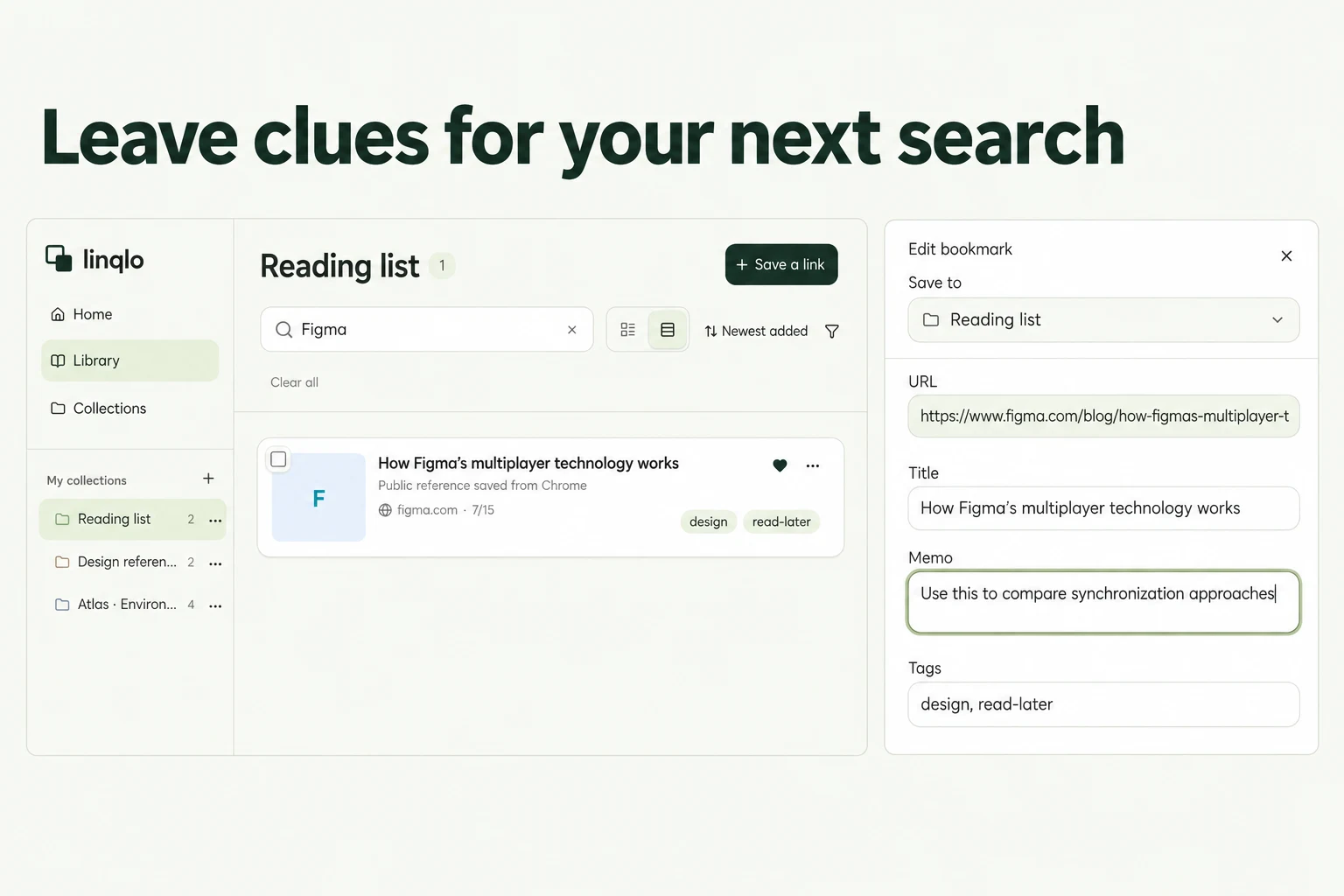
Save the URL in linqlo, then edit the bookmark's “Memo” field. You can also adjust the title while keeping the original article recognizable. “This week's recommendations” may need a few words about the actual subject.
Replace “Looks useful” with something like “Return here when the arrows in a process diagram start crossing.” A specific situation tells your future self more than a general endorsement. You do not need to copy long passages to preserve that reason.
Two lines are enough to begin:
Use when: the task or decision this helps with. Look for: the particular point or section to revisit.
Add the newsletter name or date below if it will help. Leave out personal reader details and authentication information.
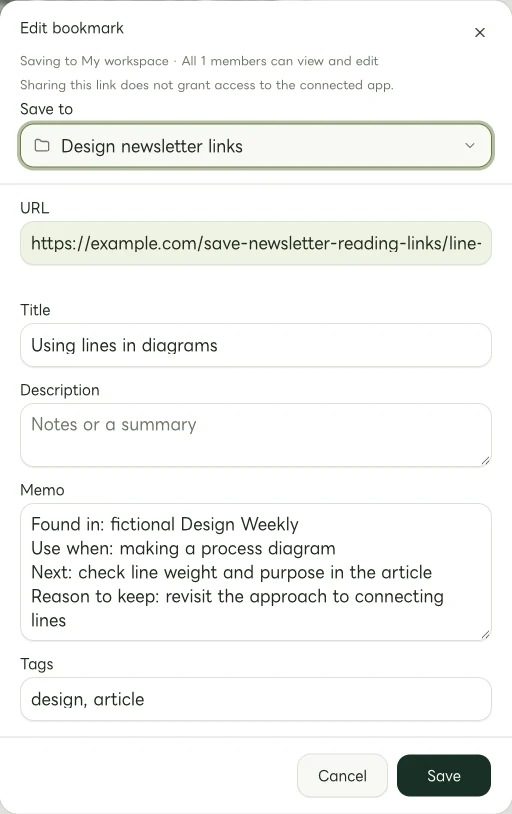
Actual Web edit dialog showing a fictional example.com link. The memo and tags are examples of manually entered information.
When next week's issue arrives
If it recommends the same article again, check whether you have already saved it before adding another link. A new use may belong in the existing memo rather than in a second bookmark.
Review notes and manual tags for events that have passed or tools you no longer need to try. A brief reason for setting something aside can help if it appears in a later issue.
Start with one public article from a recent newsletter and one reason to reopen it. That gives you one less future task that begins with searching your inbox.
Related guides
Put the guide into practice.
Create a free account to get started. No credit card needed.
Start organizing for free