For you
Organize interior and furniture candidate links with notes
Save catalog pages, store and showroom reviews, and measurement reference articles for sofas, dining tables, lighting, curtains, rugs, and large appliances (refrigerators, washers, air conditioners, and similar), then find them quickly by room or item type. Record width, depth, height, color, price range, delivery dates, and showroom impressions in memos, and filter with tags like "living," "dining," "bedroom," "lighting," "curtains," or "appliances." This is for organizing room coordination candidates as links—not a general shopping price-comparison tool, not property hunting, not a moving-prep checklist, not interior CAD or auto layout, not automatic store-inventory sync, and not permanent page archiving.
What you need
Set up a linqlo account and a device with internet access. First, verify that you can select the same workspace in the web version. The Free plan has a storage limit of 500 items. Check the remaining capacity and current pricing on the pricing page. Room measurements (wall width, clearance, outlet locations) make shortlisting easier.
Example
A collection called "Living room refresh" or "New home furniture shortlist" with three sofa candidates, a dining set, a floor lamp, curtain fabric options, a refrigerator comparison page, and a showroom booking page. Tags like "living," "dining," "lighting," "curtains," "appliances," "needs measuring," and "favorite" help you find candidates quickly. Keep size, color codes, delivery windows, and in-store notes in memos.
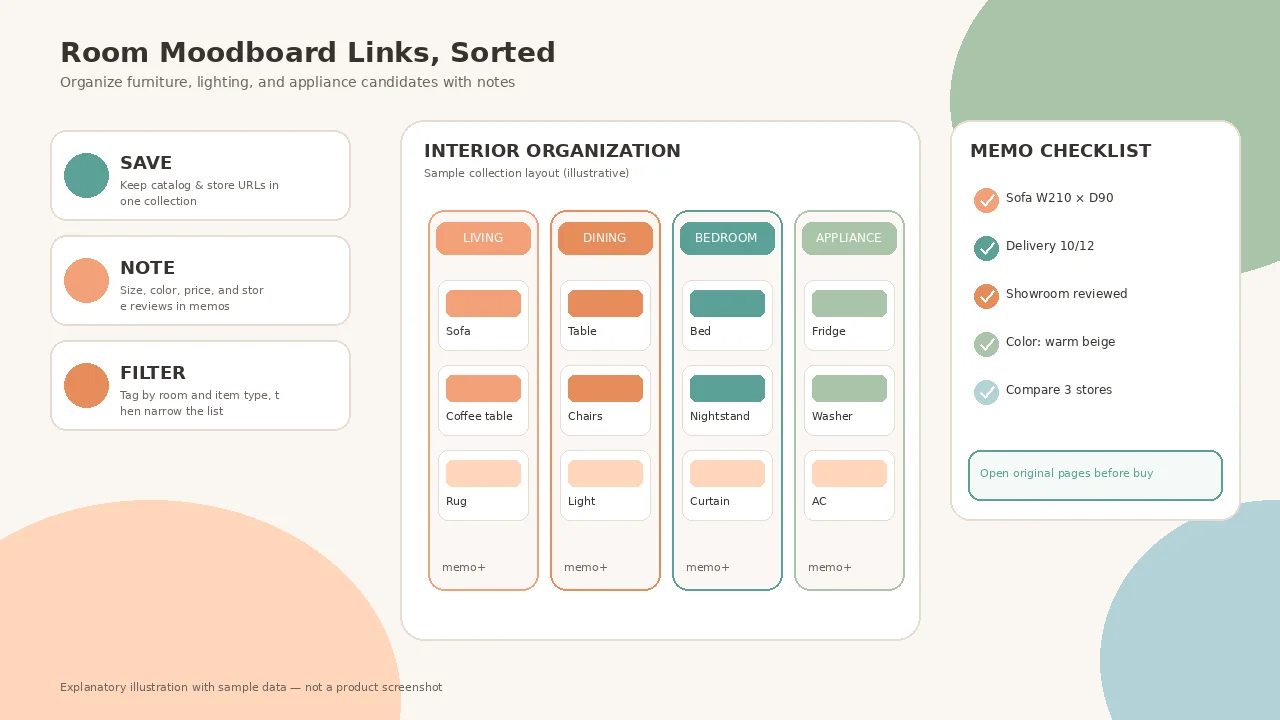
Explanatory illustration showing interior and furniture candidates with measurement and delivery memos (sample data for illustration).
The cover image and the diagram above are explanatory illustrations for demonstration purposes. These are not actual product screenshots, but illustrative diagrams with enlarged operation areas, numbers, and arrows added, displaying fictional sample data.
Steps
1. Create a collection for interior planning
Create a collection named "Living room refresh," "New home furniture shortlist," or "Lighting and curtains" to gather room coordination candidates.
2. Save furniture, lighting, and appliance URLs
Save 3–5 URLs for sofa or table catalog pages, lighting/curtain/rug product pages, large-appliance spec sheets, store or showroom reviews and visit booking pages, and measurement reference articles. Save by pasting the URL and verify that the page title appears in the list.
3. Tag by room and item type
Add tags like "living," "dining," "bedroom," "entry," "lighting," "curtains," "rug," "appliances," "needs measuring," "comparing," or "finalist." Apply multiple tags to the same page to make filtering easier later.
4. Record size, color, and delivery in memos
Record width × depth × height, seat height, color or model numbers, price range, delivery dates, assembly needs, showroom impressions, and return-policy highlights. Leave cues like "sofa W210 beige," "delivery 10/12," or "real color warmer than photos" for next time.
5. Filter by tag and open when needed
Combine "living" and "needs measuring" to surface sofa candidates, compare floor lamps and pendants under "lighting," or open refrigerator spec sheets under "appliances." Always check the original page for the latest stock, size, and price before purchasing or visiting a store.
When you can't find or save
If you can't find an item after saving, check your account, workspace, and collection in that order, remove any unnecessary search or tag filters, and reload the list. If you see a failure message or disconnection, verify that the same URL isn't already saved before retrying. If you're not logged in, log in and then recheck the save destination and URL. If shared content doesn't reappear, copy the URL again from the original site and add it manually.
Capabilities and limits
This is for organizing candidate URLs for interiors, furniture, and large appliances. It does not provide automatic lowest-price shopping comparison across categories, property hunting, moving-prep checklists, floor-plan CAD or auto furniture placement, automatic store inventory or price sync, or checkout/order placement. Save publicly available catalog, review, and store pages, and open the original page when you need the latest information. This is not permanent archiving of page content, so discontinued products or deleted pages may make URLs inaccessible. Fit, delivery availability, and stock change frequently, so always verify on the original site and with your own measurements before buying or visiting.
FAQ
Can I automatically import candidates from price-comparison sites or shopping apps?
No. This guide covers saving and organizing interior-related URLs. There is no automatic sync with specific shopping apps or price-comparison sites. Save product page URLs individually for items you want to keep.
Will product details and photos stay permanently once saved?
This guide covers saving and organizing URLs. If a retailer deletes a product, updates price or specs, or changes public access, the URL may become inaccessible due to changes on the original site. This is not permanent archiving of page content.
Can I place furniture on a floor plan or check stock automatically?
linqlo is not an interior CAD tool or inventory system. This guide covers organizing candidate links and simple notes. For layout simulation or real-time stock, use dedicated tools alongside retailer sites.
Can I share a furniture shortlist collection with family or housemates?
Yes. If your pricing plan supports team features, you can share collections with specific people. However, this guide focuses on organizing personal room coordination candidates. See the pricing page for details on collaboration features.
Getting started and related guides
If you're not registered, you'll need to create an account. If you're already logged in, verify your workspace before starting.
Put the guide into practice.
Create a free account to get started. No credit card needed.
Start organizing for free